
Working with Libraries
LoomCAD provides access to component libraries to speed up your design workflow. You can use built-in libraries, fetch data from DigiKey, or create your own library templates.
Library = Drawing Template
LoomCAD libraries are more than part catalogs. Each library item is a complete drawing sheet that can contain multiple components, bundles, wires, and annotations. This lets you create reusable assemblies and sub-harness templates, not just single components.
Built-in Libraries
LoomCAD includes libraries for common components:
- Connectors
- Wires
- Pins
- Bundles
Using the Library Panel
- Open the Side Menu
- Click the Library tab
- Browse categories or use the search box
- Drag a component onto the canvas
Fetching Properties
If you have a component on the canvas that needs properties:
- Select the component
- Open the Inspector
- Click Fetch
- Choose a library item
- Select Merge (add properties) or Replace (overwrite all)
DigiKey Integration
DigiKey provides access to millions of real electronic components with specifications, images, and datasheets.
Searching DigiKey
- Open the DigiKey panel from the Side Menu
- Enter a search term (part number, description, or keyword)
- Browse results with component photos and categories
Viewing Component Details
- Click a component to see its specifications
- Click View on DigiKey to open the full product page
- Click View Datasheet to see the PDF datasheet
Importing to Your Design
Method 1: Fetch to Existing Component
- Select a component on your canvas
- In the DigiKey panel, find the desired part
- Click Copy to Clipboard
- In the Inspector, click Fetch and paste
Method 2: AI-Assisted Creation
- Find your component in DigiKey
- Click Copy to Clipboard
- Open AI Chat
- Add the Inspector context badge
- Ask: "Create a connector using this DigiKey component"
Search History
DigiKey searches are cached for faster access. Recent searches appear in the search dropdown.
Creating Library Elements
Add your own components to libraries for reuse.
Creating a Component Template
- Create a component with all desired properties
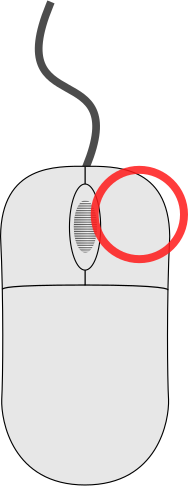 click the component
- Select Add to Library
- Choose the destination library
- Enter a name and description
Creating a Wire Template
- Create a wire with the desired properties (color, gauge, etc.)
- click the wire
- Select Add to Library
Managing Libraries
Access library management from the Side Menu:
- Create new libraries
- Edit existing elements
- Delete unused items
- Import/export library files
Tips
- Use DigiKey for accuracy - Real part numbers ensure correct specifications
- Build a project library - Add frequently used components to your project's library
- Share libraries - Export libraries to share with team members
Related Topics
- DigiKey Integration - Full DigiKey panel documentation
- Inspector - Property editing and fetching
- Components Reference - Component properties