
Command Palette
The Command Palette provides quick access to all LoomCAD commands through a searchable interface. It's the fastest way to find and execute any action.
Opening the Command Palette
| Method | Action |
|---|---|
| Keyboard | Press Space |
| Mouse | Click Menu button (☰) in Toolbar |
The Command Palette appears as a modal dialog in the center of the screen.
Layout
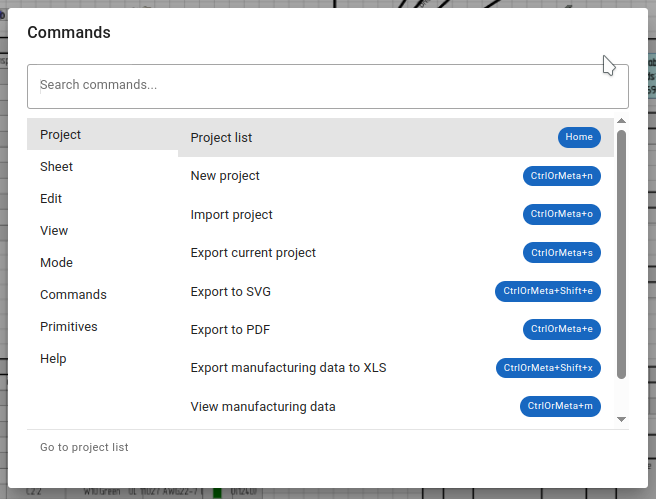
command-palette-layout.png
Command Palette with labeled sections
Search Field
At the top of the dialog:
- Type to filter commands
- Real-time search results
- Clears with Escape or clear button
Category Panel (Left)
Vertical list of command categories:
- Click category to filter commands
- "All" shows all commands
- Categories organize by function
Command List (Right)
Filtered list of commands:
- Command name
- Keyboard shortcut (if any)
- Disabled state indicator
Using Command Palette
Search for Commands
- Open Command Palette (Space)
- Start typing command name
- Results filter in real-time
- Click or use keyboard to select
Search tips:
- Partial matches work: "exp" finds "Export"
- Case-insensitive: "UNDO" = "undo" = "Undo"
- Search by description keywords
Browse by Category
- Open Command Palette
- Click a category on the left
- Browse commands in that category
- Click to execute
Execute Commands
| Method | Action |
|---|---|
| Mouse | Click command in list |
| Keyboard | Use ↑/↓ to select, Enter to execute |
| Keyboard | Press Escape to cancel |
Command Categories
| Category | Contains |
|---|---|
| All | All available commands |
| Project | Project operations (new, open, save, export) |
| Sheet | Sheet management |
| Edit | Undo, redo, copy, paste |
| View | Zoom, fit, show/hide panels |
| Mode | Selection and editing modes |
| Commands | Drawing and element operations |
| Primitives | Basic shapes and objects |
| Help | Documentation, about |
Project Commands
| Command | Shortcut | Description | Prerequisites |
|---|---|---|---|
Home tool  | Home | Open the project list screen | — |
| Create a new project | Ctrl+N | Create a new empty project | — |
Import tool  | Ctrl+O | Import project from exported JSON file | — |
Export tool  | Ctrl+S | Export current project to JSON file | Project open |
| Export current sheet to SVG | Ctrl+Shift+E | Export current sheet as SVG image | Project open |
| Export current sheet to PDF | Ctrl+E | Export all sheets as PDF document | Project open |
| Export manufacturing data to XLS | Ctrl+Shift+X | Export BOM, wire list, cut list to Excel | Project open |
Manufacturing Data tool  | Ctrl+M | View BOM, wire list, cut list dialog | Project open |
Sheet Commands
| Command | Shortcut | Description | Prerequisites |
|---|---|---|---|
| Create a new sheet | Ctrl+Shift+N | Add new sheet to current project | Project open |
| Rename current sheet | — | Change the name of current sheet | Project open |
| Create sheet wire table | — | Add wire table to current sheet | Project open, no existing wire table |
| Attach all free anchors to one | — | Useful for library component creation | Project open |
Edit Commands
| Command | Shortcut | Description | Prerequisites |
|---|---|---|---|
Undo tool  | Ctrl+Z | Revert the last change | Actions to undo |
Redo tool  | Ctrl+Shift+Z | Restore the last undone change | Actions to redo |
Copy tool  | Ctrl+C | Copy selection to clipboard | Elements selected |
Paste tool  | Ctrl+V | Paste at specific position (click to place) | Clipboard has items |
View Commands
| Command | Shortcut | Description | Prerequisites |
|---|---|---|---|
| Zoom in | Ctrl++ | Increase zoom level | Project open |
| Zoom out | Ctrl+- | Decrease zoom level | Project open |
| Fit to view | Ctrl+0 | Fit all content in viewport | Project open |
| Show/hide console | ` | Toggle developer console | — |
| Show/hide AI chat | / | Toggle AI assistant panel | — |
Mode Commands
| Command | Shortcut | Description | Prerequisites |
|---|---|---|---|
Inspection tool  | Escape | Select, inspect and move elements | Project open |
Eraser tool  | Delete | Delete elements by clicking | Project open |
Commands
| Command | Shortcut | Description | Prerequisites |
|---|---|---|---|
Dimension tool  | Alt+D | Draw dimension lines | Project open |
Bundle tool  | Alt+B | Create wire bundle | Project open |
bundlesplice tool  | — | Create bundle splice | Project open |
Wire tool  | Alt+W | Add wire to bundle | Project open |
Library Component tool  | Insert | Place component from library | Library and sheet selected |
Custom Component tool  | Ctrl+Insert | Draw custom component | Project open |
Terminal tool  | — | Create terminal/connector element | Project open |
| Add/remove bundle break | — | Toggle bundle break point | Project open |
Primitives Commands
| Command | Shortcut | Description | Prerequisites |
|---|---|---|---|
Line tool  | Alt+L | Draw straight line | Project open |
Circle tool  | Alt+C | Draw circle shape | Project open |
Rectangle tool  | Alt+R | Draw rectangle shape | Project open |
Text tool  | Alt+T | Add text element | Project open |
Image tool  | Alt+I | Import and place image or SVG | Project open |
Help Commands
| Command | Shortcut | Description | Prerequisites |
|---|---|---|---|
| About LoomCAD | — | Show application info | — |
| Open help | — | Open documentation | — |
Keyboard Navigation
| Key | Action |
|---|---|
| ↑ / ↓ | Move selection up/down |
| Enter | Execute selected command |
| Escape | Close Command Palette |
| Tab | Move focus between search and list |
| Home | Jump to first command |
| End | Jump to last command |
Quick Execution
For frequently used commands:
- Open Command Palette (Space)
- Type first few letters
- Press Enter (executes first match)
Example: Type "und" + Enter to quickly undo.
Tips
Finding Commands You Don't Know
- Open Command Palette
- Type keywords describing what you want to do
- Browse matching results
- Read command names to find the right one
Example: Type "wire" to find all wire-related commands.
Learning Shortcuts
Use Command Palette to discover shortcuts:
- Execute commands through palette first
- Note the shortcut shown
- Use shortcut directly next time
Quick Tool Switching
Instead of clicking toolbar buttons:
- Press Space
- Type tool name (e.g., "line")
- Press Enter
Customization
Currently, Command Palette shortcuts are predefined. Future versions may support:
- Custom shortcuts
- Favorite commands
- Recent commands list