
Bundles
Bundles represent the physical wire harness paths in your design. They define how wires are routed between components and are essential for accurate length calculations and manufacturing documentation.
Creating Bundles
Using the Bundle Tool
- Select the Bundle tool from the Toolbar or press Alt+B
- Click to place the bundle start point
- Ctrl+click to add bend points along the path (optional)
- Click to finish the bundle and open the properties dialog
Adding Bends During Placement
Hold Ctrl while clicking to add intermediate bend points. This creates a polyline bundle with multiple segments. Regular click finishes the placement.
Using AI Chat
Ask the AI to create bundles:
Create a bundle from position 100, 100 to 400, 100Create a bundle with waypoints at 100,100 then 200,150 then 300,100Bundle Properties
Select a bundle and open the Inspector to view and edit:
| Property | Description |
|---|---|
| name | Bundle identifier |
| diameter | Bundle cross-section diameter |
| sleeving | Protective sleeving type |
| length | Total bundle length |
| shielded | Whether bundle has shielding |
| partNumber | Bundle part number |
| manufacturer | Bundle manufacturer |
| description | Bundle description |
| notes | Additional notes |
Bundle Labels
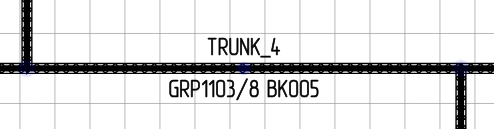
Every bundle is automatically labeled with two text containers on its first segment:
$REFDES- shows the bundle name (e.g.B1).$PN- shows the bundle part number.
The tokens resolve dynamically: if you rename the bundle in the Inspector, both labels update on the next redraw.
Moving a label
Click on a label and drag:
- Along the bundle - the label slides along the segment (its anchor's position on the line changes).
- Away from or toward the line - the label moves perpendicular to the bundle (the label's own perpendicular distance changes).
Both operations are persisted as soon as you release the mouse.
Labels rotate with the bundle so they stay readable. If you rotate the bundle endpoints, the labels follow.
Attaching a label to another bundle
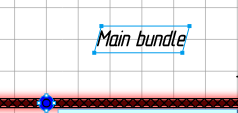
Drag a label's parent anchor near a different bundle segment. The target bundle highlights with a red glow; releasing the mouse re-attaches the label to that bundle. The label snaps onto the nearest point along the segment.
Freezing label rotation
Select a label and open the Inspector. The isRotateDisabled boolean, when set to true, keeps the label axis-aligned regardless of the bundle's rotation. Useful for labels you want to stay horizontal in dense diagonal harnesses.
Custom labels via script
Use Script.attachText to attach an existing text container to any bundle segment. Useful for adding extra annotations or for placing labels exactly where you want them.
Fetching from DigiKey or Octopart
Bundle specifications (sleeving type, covering color, manufacturer data) can be imported from DigiKey or Octopart in two ways:
- During creation — the bundle properties dialog that opens after drawing includes DigiKey and Octopart buttons.
- When editing — select the bundle, open the Inspector, and click DigiKey or Octopart in the action bar.
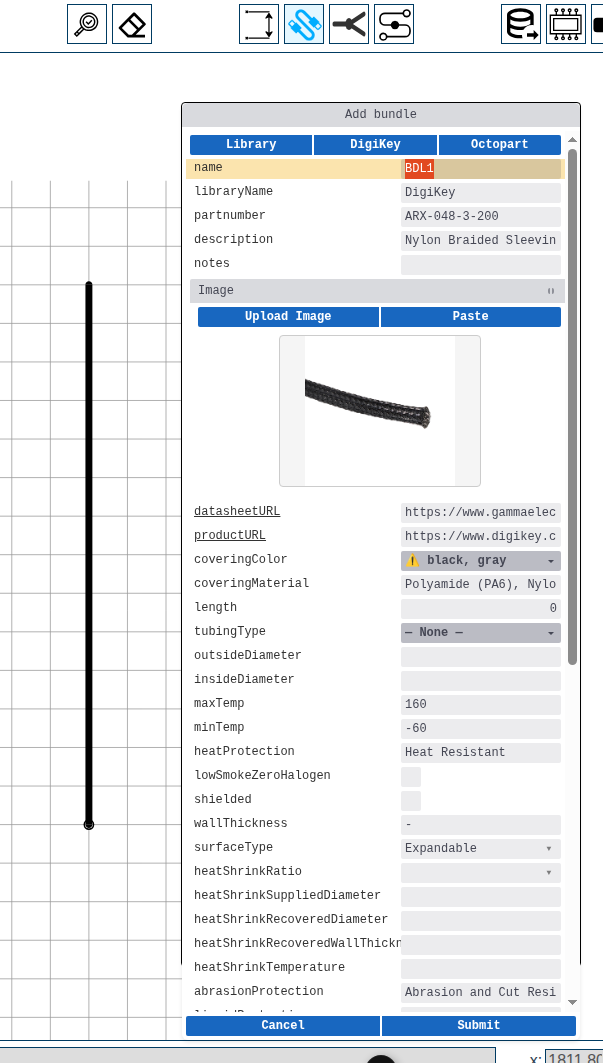
See DigiKey Integration for details.
Bundle Visualization
Bundles render with realistic styling:
- Rounded ends - Natural bundle termination appearance
- Braided sleeving - Optional textured rendering for protected bundles
- Wire cross-section view - Shows wires inside the bundle
Wire Colors Along Bundle
When wires run through a bundle, their colors are visualized along the bundle path. This helps identify wire routing at a glance.
Bundle Splices
A bundle splice represents a physical junction or splice point in the harness where bundles connect or merge. Splices carry manufacturing metadata (part number, covering material, temperature ratings).
Creating Splices
Via Tool:
- Select the Bundle Splice tool from the Toolbar (in the Drawing Tools group)
 click on a bundle anchor point
- Fill in the splice properties dialog (name, part number, appearance)
- Submit to place the splice
Via Context Menu (converting existing image):
- Place an image of the splice symbol on the canvas near a bundle junction
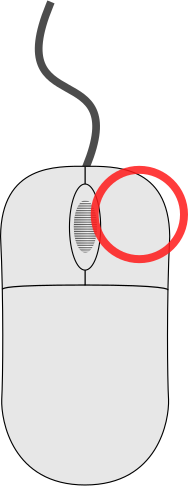 click on the image
- Select Convert to Bundle Splice
Both methods create a splice element linked to the bundle junction's wirenode.
Splice Properties
Select a splice and open the Inspector to view and edit:
| Property | Description |
|---|---|
| name | Splice identifier |
| partnumber | Part number |
| description | Description |
| manufacturer | Manufacturer |
| coveringMaterial | Covering material type |
| coveringColor | Covering color |
| maxTemp | Maximum temperature |
| minTemp | Minimum temperature |
Fetching Splice Data
Splice specifications can be imported from DigiKey or Octopart in two ways:
- During creation — the splice properties dialog includes DigiKey and Octopart buttons.
- When editing — select the splice, open the Inspector, and click DigiKey or Octopart.
Bundle Bends
Bundle bends allow you to create corners or waypoints in a bundle path without affecting the electrical connectivity.
Adding Bends
- click on a bundle segment
- Select Add Bend
- The bend is placed at the click location
Removing Bends
- click on a bend anchor (the point where two segments meet)
- Select Remove Bend
The two segments are merged back into one. Any bundle breaks on the affected segments are removed automatically.
Bend Behavior
- A bend splits one bundle segment into two segments
- Both segments share the same logical bundle
- Wire routing through the bundle is unaffected
- Bends can be added to any bundle segment
Bundle Breaks
Bundle breaks are visual marks indicating that the drawn length of a bundle on the sheet does not reflect its actual physical length. Use them when a bundle is visually shortened for layout purposes but represents a longer real-world path.
Adding Breaks
Via Tool:
- Select the Bundle Break tool from the toolbar
- click on the bundle where you want the break marker
Via Context Menu:
- click on a bundle segment
- Select Add Break
Removing Breaks
- click the same bundle with the Bundle Break tool (toggles off),or
- click on the bundle part and select Remove Break
Moving Breaks
Click and drag the break symbol to slide it to a different position along the bundle segment. The break snaps to the bundle line and updates its stored offset.
Connecting Bundles to Components
Bundles connect to components at anchor points. When you draw a bundle near a component, it automatically snaps to the nearest valid anchor.
Anchor Management
- Anchors appear as semi-transparent handles
- Hover to highlight
- click to access context menu options (Merge Anchors, Attach All)
See Context Menu Quick Reference for all bundle and anchor context menu options.
Wire Routing
Wires automatically route through connected bundles:
- Create bundles between components
- Add wires between component pins
- Wires follow bundle paths automatically
- Wire lengths calculate based on actual routing
Related Topics
- Wires - Wire connections through bundles
- Components - Bundle endpoints
- Your First Harness - Step-by-step bundle creation