
Start Screen
The Start Screen is the first interface you see when launching LoomCAD. It provides access to your workspaces, projects, and component libraries.
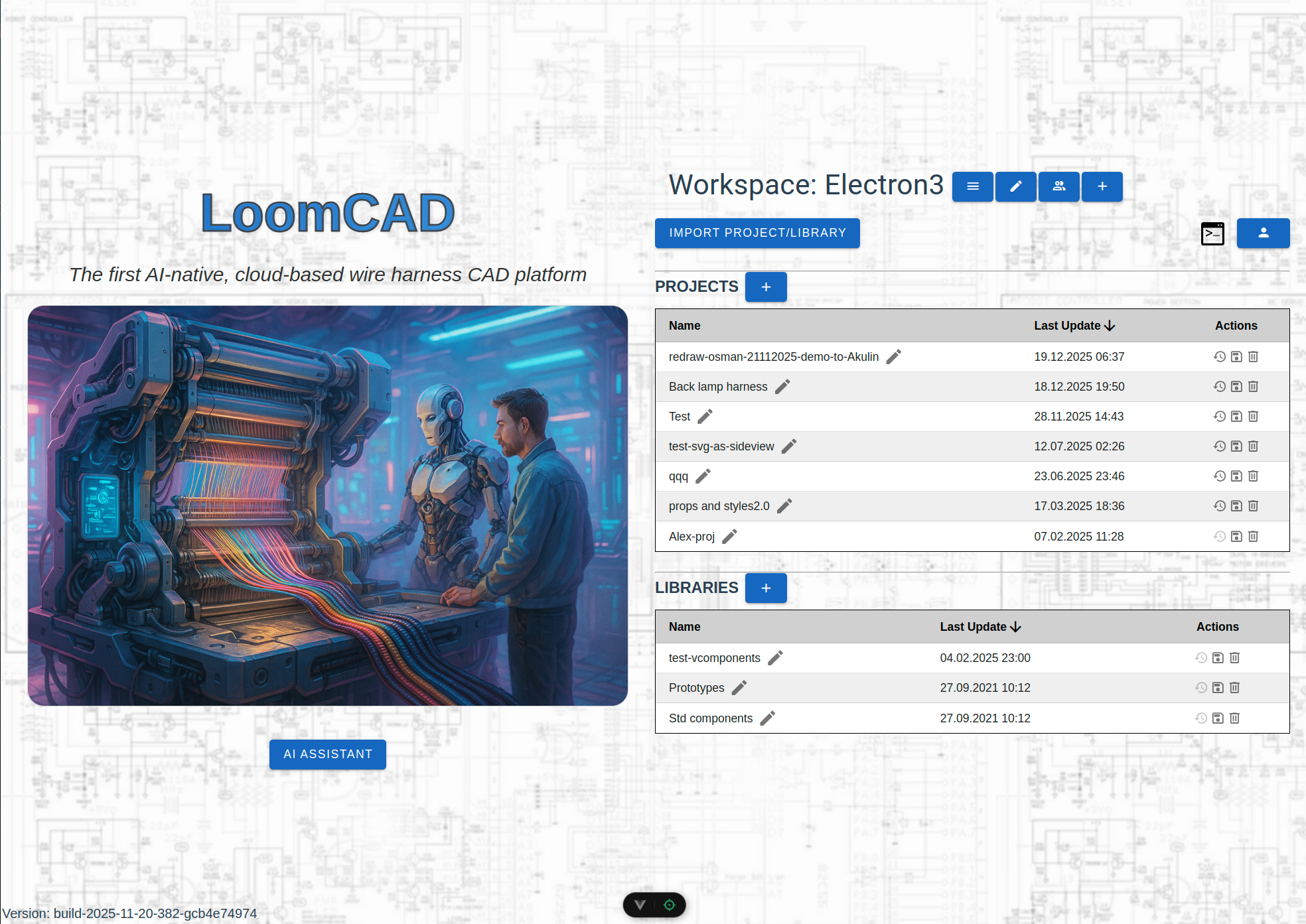
Overview
The Start Screen is divided into two main areas. The left side contains the Branding Panel with the logo, description, and AI Assistant button. The right side contains the Management Panel where you can manage your workspace, projects, and libraries.
Workspace
A Workspace is a container for your projects and libraries. You can have multiple workspaces for different clients or purposes.
Workspace selector displays the current workspace name with action buttons:
| Button | Action |
|---|---|
 | Select workspace |
 | Rename workspace |
 | Share workspace |
 | Create new workspace |
Select Workspace
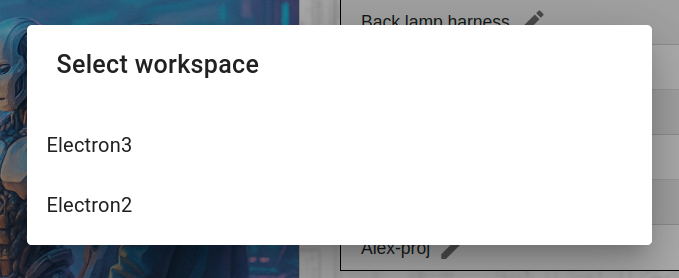
Choose from available workspaces in your account.
Rename Workspace
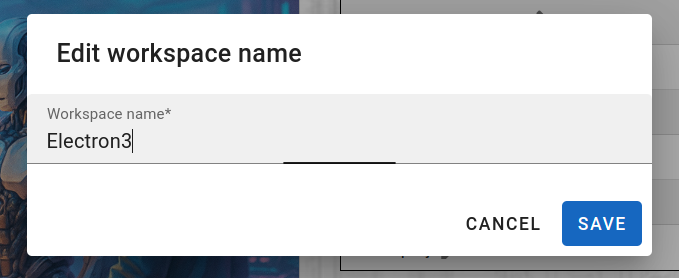
Enter a new name for the current workspace.
Share Workspace
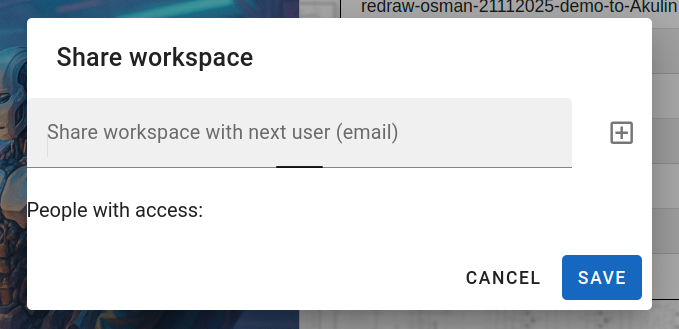
Invite other users by email to collaborate on this workspace.
Create New Workspace
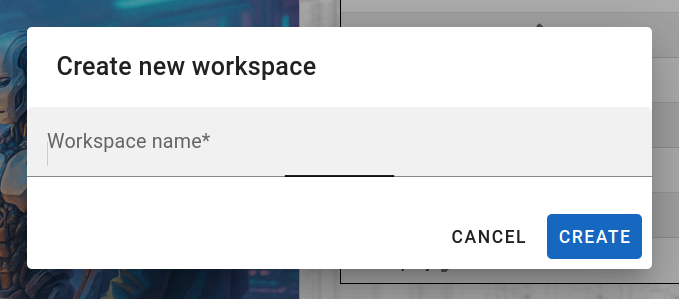
Enter a name for the new workspace.
Projects
The Projects table shows all projects in the current workspace.
| Column | Description |
|---|---|
| Name | Project name (click to open) |
| Last Update | Date of last modification |
| Actions |    |
Table Sorting
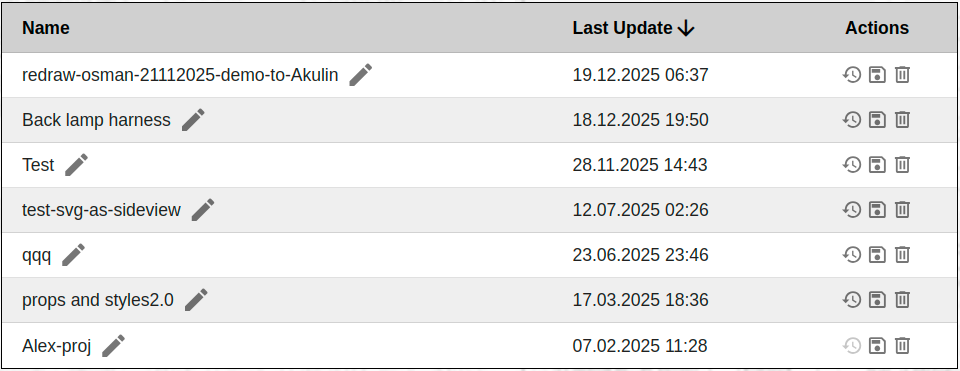
Click any column header to sort the table by that column. The arrow indicates current sort direction:
- ↓ — descending (newest first)
- ↑ — ascending (oldest first)
Actions:
| Action | How to |
|---|---|
| Create project | Click in table header |
| Open project | Click project name |
| Rename project | Click next to project name |
| History | Click |
| Save/Export | Click |
| Delete project | Click |
Project History
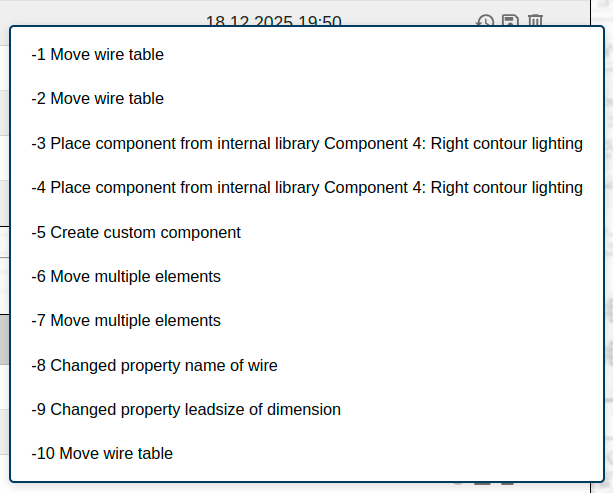
Shows the list of recent actions in the project. Each entry shows an action that can be undone. Click an entry to revert to that state.
Named revisions appear in bold — these are checkpoints created manually via script or automatically before each script execution, making them easy to find among regular operations.
Project Recovery Dialog
When a project fails to load — due to data integrity errors or a rendering crash — LoomCAD automatically shows a recovery dialog instead of leaving you with a broken screen.
Integrity check failure (project data has errors but may still render):
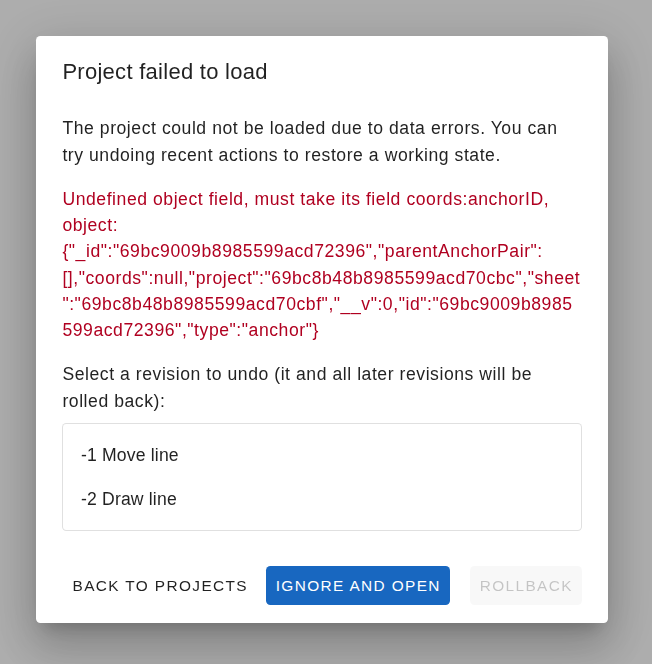 Recovery dialog showing integrity errors with all three action buttons.
Rendering failure (project cannot be displayed):
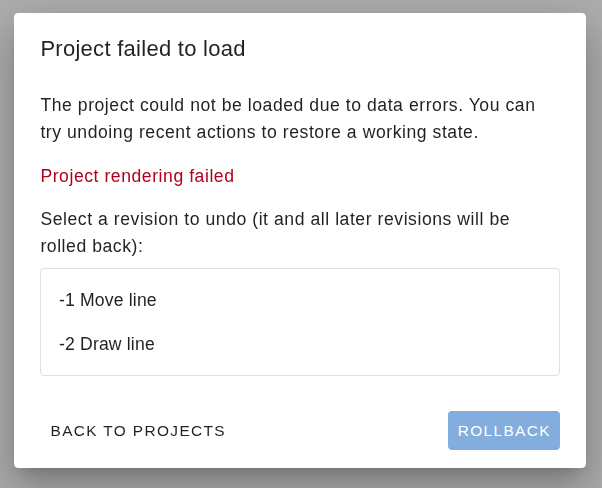 Recovery dialog after a rendering crash. "Ignore and open" is not available.
The dialog shows error details grouped by category with counts (e.g. broken_reference: 3 errors, duplicate_name: 12 errors).
Recovery options
| Button | When available | What it does |
|---|---|---|
| Back to projects | Always | Returns to the project list |
| Ignore and open | Integrity errors only | Skips the errors and loads the project anyway |
| Rollback | Project has undo history | Undoes the selected revision and all later ones |
- Pressing Esc or clicking outside the dialog has the same effect as Ignore and open (when available).
- The rollback list shows the most recent 10 revisions. Select one and click Rollback to undo it and everything after it. The page reloads with the restored data.
TIP
If Ignore and open works, consider exporting the project as JSON backup (Project > Export as JSON) and then fixing the data issues via a script or contacting support.
Rename Project

Click the pencil icon to edit the project name inline. Press Enter to save or Escape to cancel.
Libraries
The Libraries table shows component libraries available in the workspace.
| Column | Description |
|---|---|
| Name | Library name |
| Last Update | Date of last modification |
| Actions | |
Actions:
| Action | How to |
|---|---|
| Create library | Click in table header |
| Open library | Click library name |
| History | Click |
| Save/Export | Click |
| Delete library | Click |
Import
Click IMPORT PROJECT/LIBRARY button to import:
- Project files (JSON)
- Component libraries
AI Assistant
The AI ASSISTANT button on the left panel opens the AI chat assistant for help with:
- Getting started with LoomCAD
- Understanding features
- Troubleshooting
Console & Profile
In the top right corner there are additional buttons:
| Button | Action |
|---|---|
 | Open user console (for debugging) |
 | Open Profile Menu |
See Profile Menu for details on account management and API configuration.
Related Topics
- Interface Overview - Main working interface
- Side Menu - Project and library management within editor
- AI Chat - AI assistant features