
Octopart Integration
LoomCAD integrates with Octopart — a multi-distributor component search engine powered by the Nexar API — to import component data directly from millions of electronic parts across hundreds of distributors.
Overview
The Octopart integration allows you to:
- Search across multiple distributors simultaneously
- Import component specifications automatically
- Find similar parts and companion products
- Get datasheets and product images
- Keep component data up-to-date
Supported Elements
Octopart fetch is available for all manufactured elements — same as DigiKey:
| Element | Creation dialog | Inspector | Save to Library |
|---|---|---|---|
| Component | ✅ | ✅ | ✅ |
| Wire | ✅ | ✅ | — |
| Bundle | ✅ | ✅ | — |
| Bundle Splice | ✅ | ✅ | — |
| Pin | ✅ (Terminal dialog) | ✅ | — |
Opening the Octopart Dialog
From the Inspector (editing an existing element):
- Select any manufactured element on the canvas
- Open the Inspector (if not already visible)
- Click Octopart in the Inspector action bar
From a creation dialog (before the element is placed):
The Octopart button appears in every creation dialog for manufactured elements, alongside the DigiKey button. Click it while filling in properties to search and import data before confirming placement.
Searching for Components
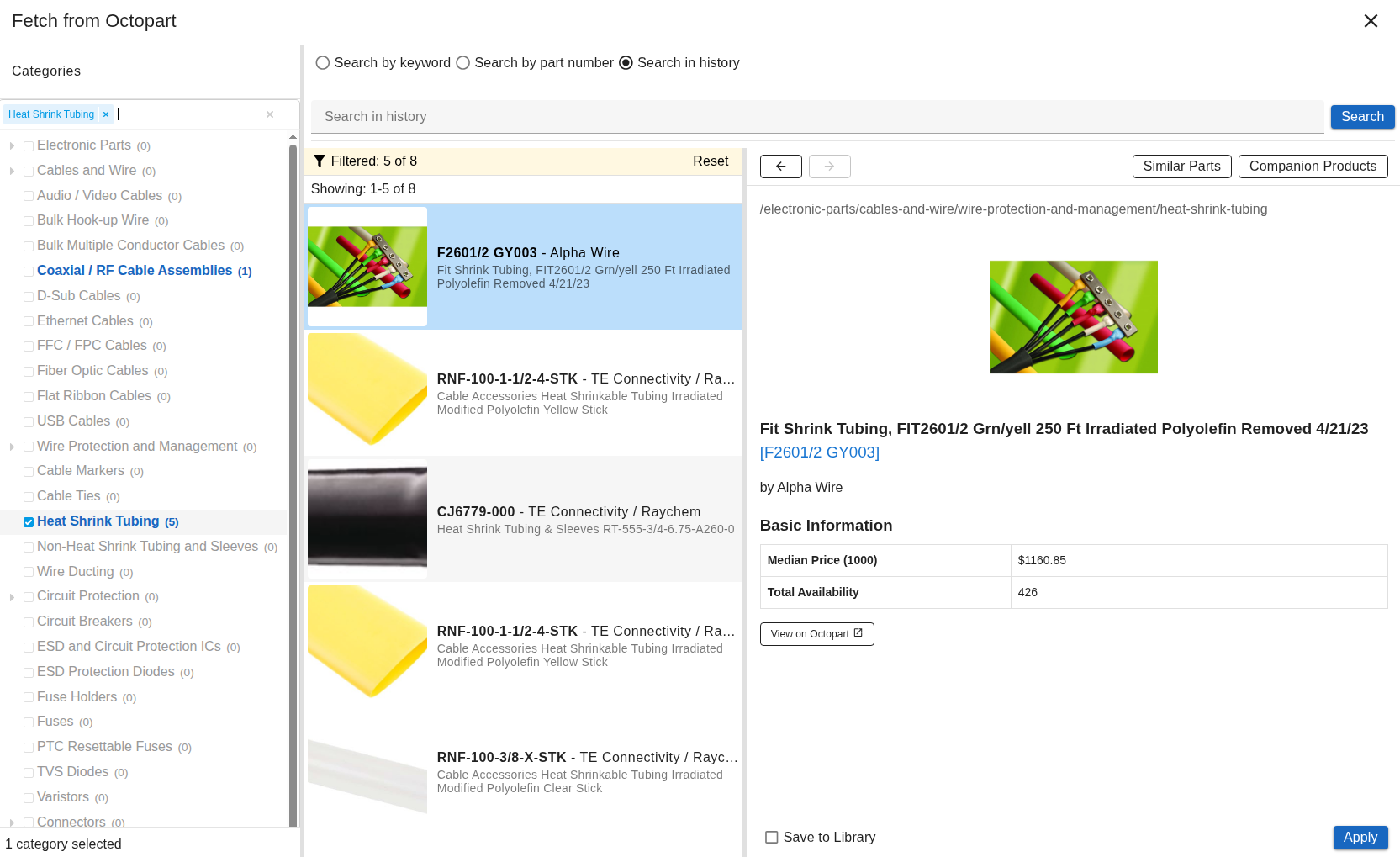
Search Type and Input
At the top of the dialog, choose a search mode:
| Mode | Description |
|---|---|
| Search by keyword | Free-text search by description or specification |
| Search by MPN | Exact manufacturer part number search |
| Show History | Browse previously fetched components |
Enter your query and press Enter or click SEARCH.
Categories
The categories panel shows a hierarchical tree of Octopart product categories. Click a category to filter search results to that category only.
Browse Results
Search results appear as a list with:
- Product thumbnail
- Manufacturer part number
- Manufacturer name
- Product description
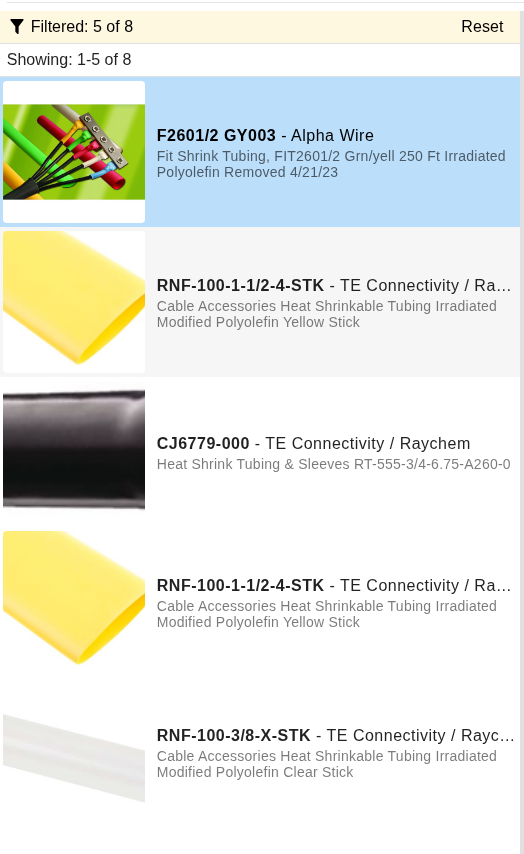
 click a row to select it — the Product Card appears on the
right.
Product Card
When you select a result, the product card shows:
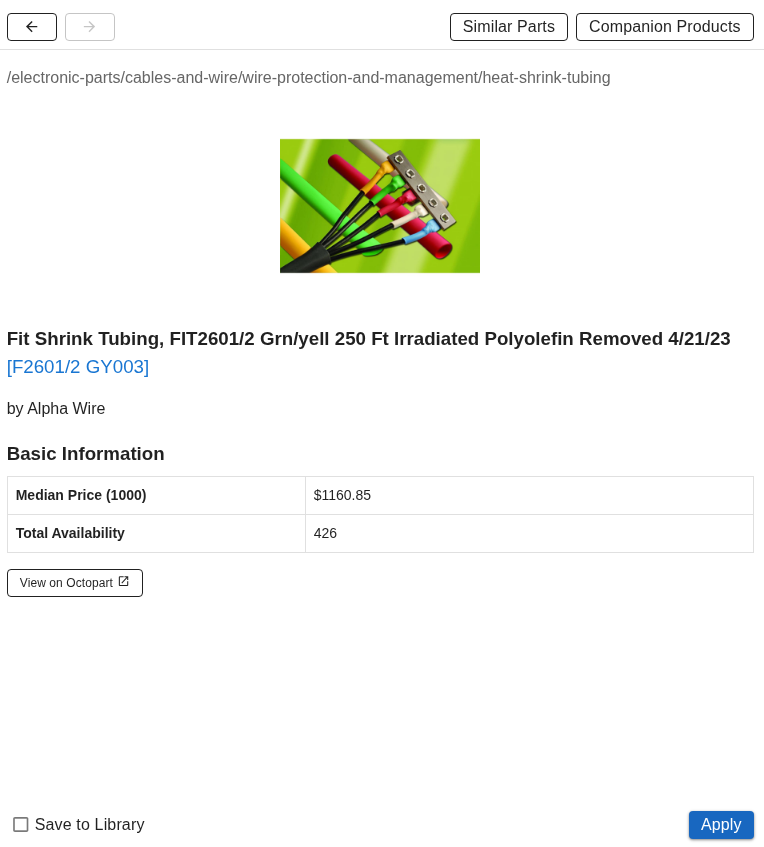
Navigation
| Element | Description |
|---|---|
| ← → | Navigate through product card view history |
| Similar Parts | Show physically similar parts |
| Companion Products | Show parts that work together |
Product Details
- Category path
- Product photo
- Description and manufacturer
- Unit price and stock availability
- Technical parameters (scroll down)
Links
| Button | Description |
|---|---|
| DATASHEET | Open PDF datasheet |
| VIEW ON OCTOPART | Open product page on Octopart website |
Action Buttons
| Button | Description |
|---|---|
| REPLACE | Overwrite all element properties with Octopart data |
Imported Data
Octopart provides the following fields:
| Field | Description |
|---|---|
| partnumber | Manufacturer part number |
| description | Product description |
| manufacturer | Manufacturer name |
| manufacturerPN | Manufacturer part number (same) |
| datasheetURL | Link to datasheet PDF |
| productURL | Link to Octopart product page |
| imageData | Product image |
| ratedVoltage | Voltage rating (if available) |
| ratedCurrent | Current rating (if available) |
| maxTemp / minTemp | Temperature range (if available) |
Compared to DigiKey
Octopart does not return pinCount, family, or packageType — these fields will remain empty after an Octopart import. Use DigiKey if you need those fields.
Adding to Component Library
When the Octopart dialog is opened for a new component, a Save to Library checkbox appears in the action bar.
When checked, clicking Replace first opens a secondary dialog:
- Select library — choose which library project to save into
- Use part number as sheet name — checked by default
- Click Save & Apply — saves the component to the library, then applies it to the current design
INFO
Save to Library is only available for new components, not for wires, bundles, or bundle splices.
Setup
Octopart uses the Nexar API. Credentials are OAuth2 client ID and secret obtained from nexar.com/api.
Global config (all users)
Add to config.mjs:
octopart: {
  clientId: "YOUR_NEXAR_CLIENT_ID",
  clientSecret: "YOUR_NEXAR_CLIENT_SECRET",
},
Per-user keys
Set octopartID and octopartSecret on the user record. Per-user keys take precedence over the global config — useful for development or when different users have separate Nexar accounts.
Troubleshooting
"API Error" Message
- Check that
clientIdandclientSecretinconfig.mjsare correct Nexar credentials - Verify internet connection
- Nexar API may be temporarily unavailable — check status.nexar.com
No Results Found
- Try different search terms or switch to MPN search
- Check spelling of part numbers
- Use broader keywords
Missing Data
- Not all parts have complete data across all distributors
- Some fields (pinCount, family, packageType) are not returned by Octopart — use DigiKey for those
Related Topics
- DigiKey Integration — DigiKey-specific workflow and setup
- Inspector — Fetch button location
- Wires — Wire properties and fetch
- Bundles — Bundle and splice properties and fetch