
Script Libraries
Scripts can be saved to libraries for reuse across projects. This lets you build a collection of proven automation tools that work reliably every time.
Why Save Scripts?
| Benefit | Example |
|---|---|
| Reusability | Save a connector creation script, use it in every project |
| Consistency | Same naming conventions, same wire colors across designs |
| Team sharing | Library projects can be shared with colleagues |
| Version control | Keep working versions, iterate on improvements |
Saving a Script
From AI Chat
When AI generates code, click Save:
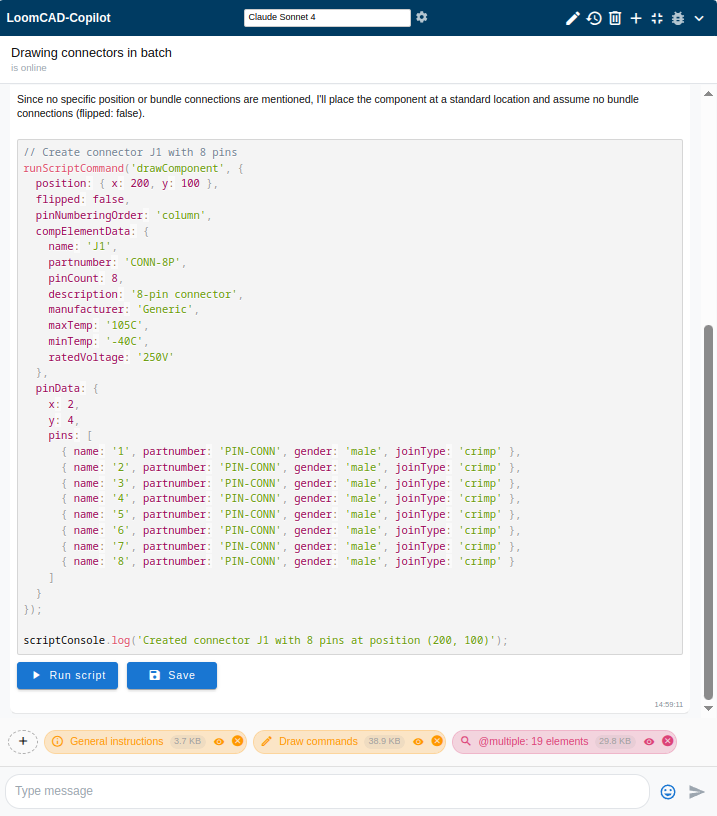
The save dialog opens:
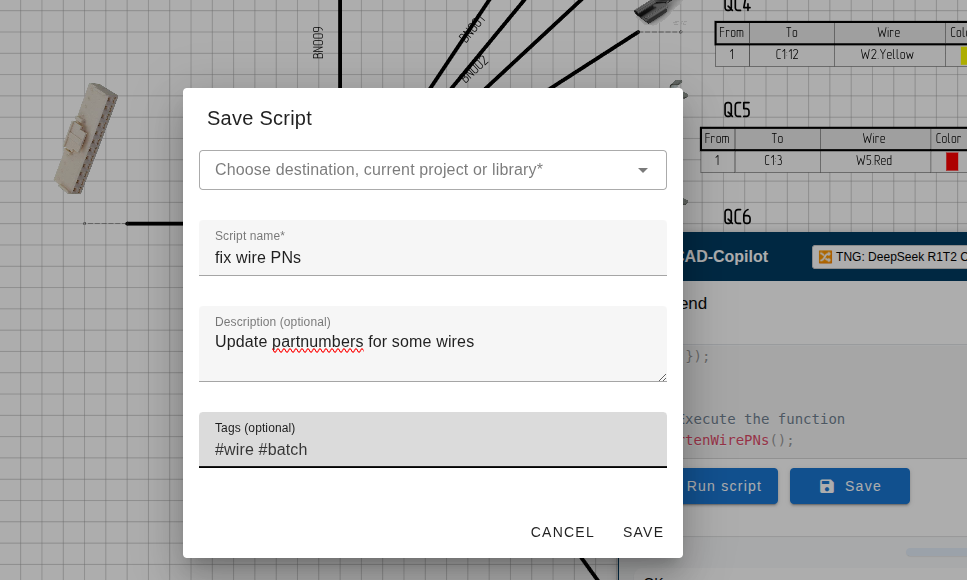 Save script dialog
| Field | Description | Required |
|---|---|---|
| Destination | Current project or a library project | Yes |
| Script name | Descriptive name for the script | Yes |
| Description | What the script does, parameters, usage notes | No |
| Tags | Keywords for searching (e.g., "power", "automotive") | No |
Choosing a Destination
Current Project
- Script is saved within this project only
- Good for project-specific automation
- Won't appear in other projects
Library Project
- Script is available across all your projects
- Appears in the Scripts section of any project
- Best for general-purpose tools
Create a Library Project
Designate one project as your "Script Library" - use it solely for storing reusable scripts and components.
Accessing Saved Scripts
From the Side Menu
Click the Scripts tab in the side menu
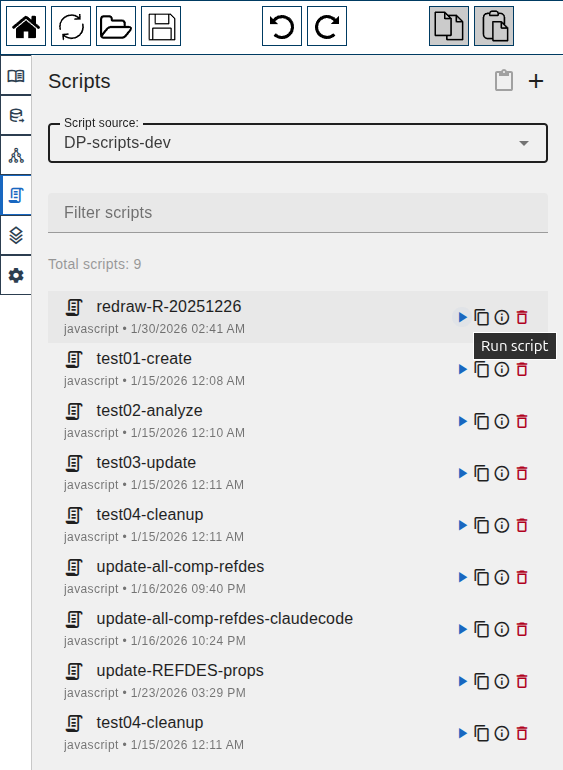 Scripts sidebar with saved scripts
Browse scripts from:
- Current project
- Library projects
Script Details
Click a script to see:
- Name and description
- Tags
- Source code (editable)
- Run and Save buttons
Click the ℹ (info) button to edit script properties (name, description, tags).
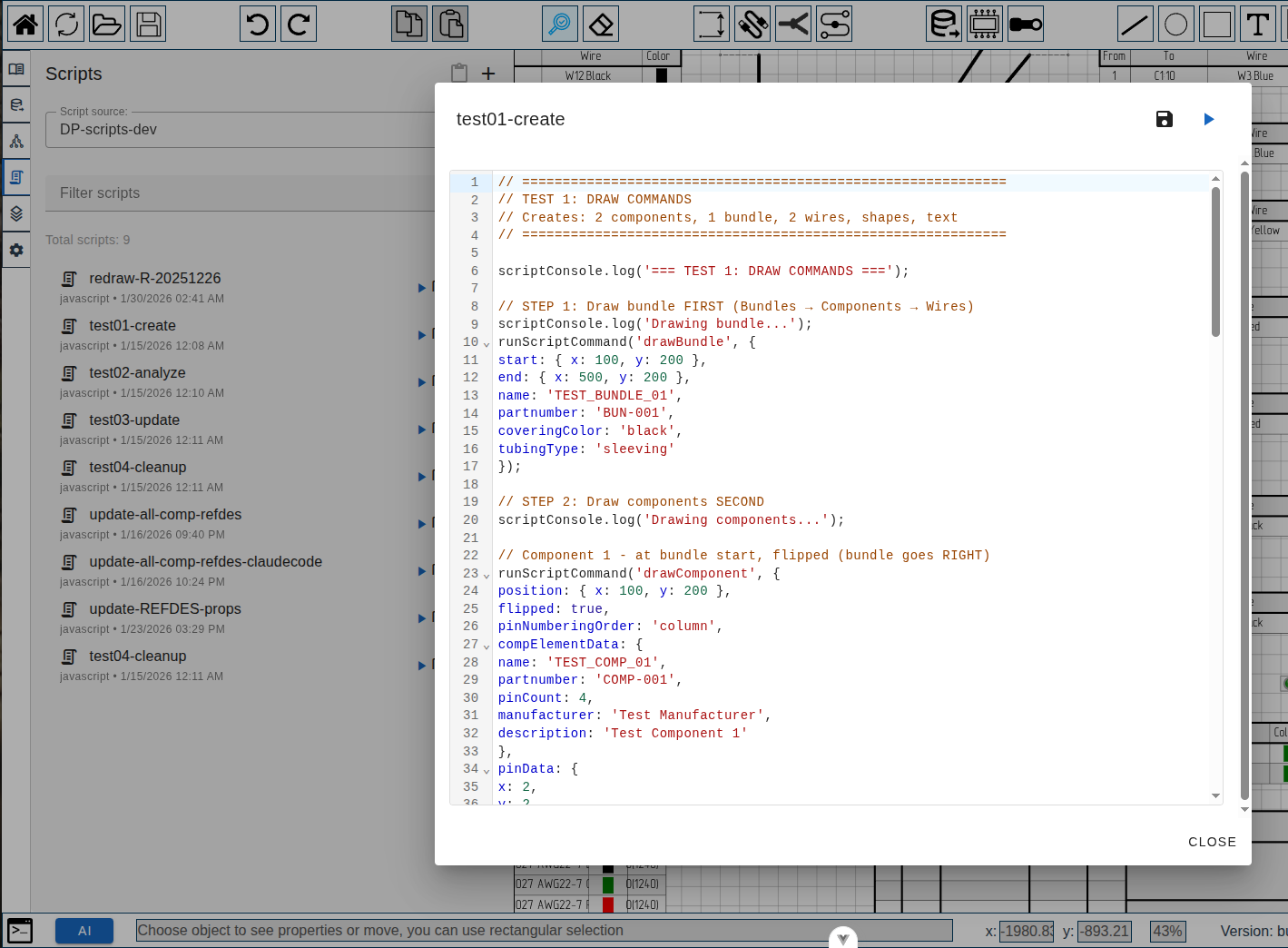 Script editor with code
Running Saved Scripts
- Open the Scripts tab
- Find your script
- Click Run
The script executes on your current sheet.
- Success: A notification appears at the top of the screen
- Error: The console icon turns red — click it to view error details
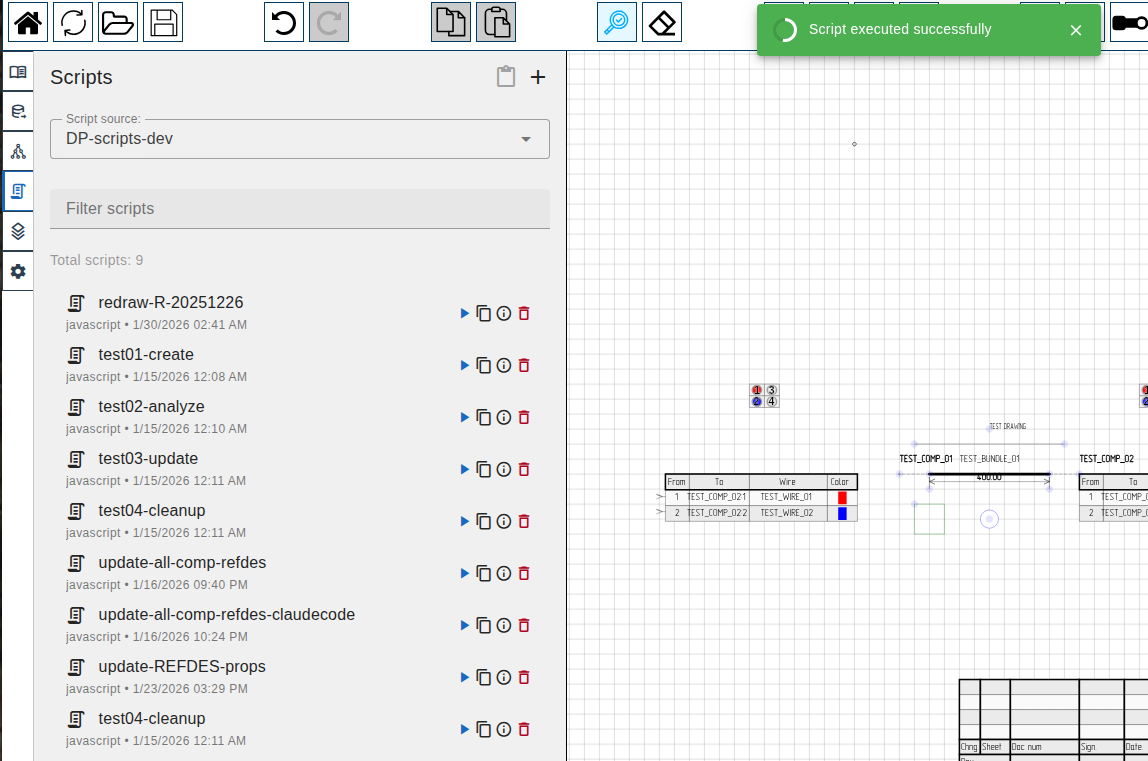 Script execution success notification
Organizing Your Library
Naming Conventions
Use clear, descriptive names:
| Good | Bad |
|---|---|
create-power-distribution-6way | script1 |
update-wire-colors-din47100 | colors |
validate-harness-connections | check |
Using Tags
Add tags for easy searching:
- Category tags:
power,signal,validation,export - Application tags:
automotive,industrial,aerospace - Complexity tags:
simple,parameterized,bulk-operation
Descriptions
Write descriptions that help future-you understand:
Creates a standard 6-way power distribution block.

Parameters (edit at top of script):
- POSITION: Starting X,Y coordinates
- FUSE_RATINGS: Array of fuse values in amps

Output:
- 1 fuse box component with 7 pins (6 outputs + 1 input)
- 6 output connectors
- Power wires from fuse box to each output

Usage notes:
- Assumes 14AWG for all power wires
- Uses standard DIN colors (red=power, black=ground)
Script Library Workflow
1. Generate with AI
Ask the AI to create a script for your task:
"Write a script that creates a row of 8-pin connectors. I want to be able to change the number of connectors and the spacing."
2. Test It
Click Run to verify it works as expected.
3. Refine
If needed, ask AI to modify:
"Make the script also accept a name prefix parameter"
4. Save to Library
Once working, click Save and choose your library project.
5. Reuse
In future projects, find the script in the Scripts tab and run it.
Sharing Scripts
To share scripts between libraries:
- Open the source library in the Scripts tab
- Click a script to view its code
- Copy the script code
- Open the target library
- Paste the code and save as a new script
Managing Scripts
Edit a Script
Scripts are stored as elements in the project. To edit:
- Find the script in the Scripts tab
- Open it to view the code
- Copy the code
- Paste into AI chat
- Ask AI to modify
- Save the updated version
Keep Old Versions
Instead of overwriting, save modified scripts with version numbers: create-harness-v2, create-harness-v3
Delete a Script
- Click the 🗑 (delete) button next to the script in the Scripts tab
- Confirm deletion
WARNING
Deleting a script from a library project removes it for all users who share that library.
Example Library Scripts
Here are scripts worth saving to your library:
Standard Connector Row
// Create a row of standard connectors
// Modify these parameters:
const COUNT = 5;
const PREFIX = "J";
const PIN_COUNT = 8;
const START_X = 100;
const START_Y = 200;
const SPACING = 150;

// Helper to create pin array
function makePins(count) {
  const pins = [];
  for (let i = 1; i <= count; i++) {
    pins.push({
      name: String(i),
      partnumber: "PIN-GENERIC", // Added default partnumber
    });
  }
  return pins;
}

for (let i = 1; i <= COUNT; i++) {
  Script.drawComponent({
    position: { x: START_X + (i - 1) * SPACING, y: START_Y },
    pinNumberingOrder: "column",
    flipped: false,
    compElementData: {
      name: `${PREFIX}${i}`,
      partnumber: "CONN-8PIN",
      pinCount: PIN_COUNT,
    },
    pinData: { x: 1, y: PIN_COUNT, pins: makePins(PIN_COUNT) },
  });
}

scriptConsole.log(
  `Created ${COUNT} connectors: ${PREFIX}1 to ${PREFIX}${COUNT}`
);
// Note: All components are created after script completes
Wire Color Audit
// Find all wires missing color assignments
const result = Script.queryWire({});
const missingColor = result.elements.filter(
  w => !w.colors || w.colors.length === 0
);

if (missingColor.length === 0) {
  scriptConsole.log("All wires have colors assigned!");
} else {
  scriptConsole.warning(`${missingColor.length} wires missing color:`);
  scriptConsole.table(
    missingColor.map(w => ({
      name: w.name,
      fromComponent: w.fromComponent,
      toComponent: w.toComponent,
    }))
  );
}
Component Position Grid
// Arrange components in a grid
const COLUMNS = 4;
const ROW_SPACING = 200;
const COL_SPACING = 150;
const START_X = 100;
const START_Y = 100;

// Query all components, then filter in JavaScript
const result = Script.queryComponent({});
const components = result.elements.filter(c => c.name.startsWith("J"));

for (let i = 0; i < components.length; i++) {
  const row = Math.floor(i / COLUMNS);
  const col = i % COLUMNS;

  Script.move({
    queries: [{ type: "component", query: components[i].name }],
    position: {
      x: START_X + col * COL_SPACING,
      y: START_Y + row * ROW_SPACING,
    },
  });
}

scriptConsole.log(`Arranged ${components.length} components in grid`);
// Note: All moves are applied after script completes
Best Practices
DO
- Save scripts that you'll use more than once
- Write clear descriptions with usage notes
- Use meaningful names and tags
- Test thoroughly before adding to library
- Create a dedicated library project for scripts
DON'T
- Save untested scripts to shared libraries
- Use generic names like "script1" or "test"
- Skip the description field
- Save project-specific scripts to shared libraries
Next Steps
- Scripting Basics - Learn the command API
- Command Reference - Full command documentation
- Debugging Scripts - Troubleshoot script errors