
Status Bar
The Status Bar is located at the bottom of the interface. It provides real-time information about your current view and controls for grid and AI features.

Layout
The Status Bar displays elements from left to right:
- Console toggle
- AI Chat button
- Status message
- Coordinates (X, Y)
- Zoom level
- Version
- Grid size input
- Grid visibility toggle
- Snap to grid toggle
- Show anchors toggle
Elements
Console Toggle
| Icon | State | Description |
|---|---|---|
 | Hidden | Console hidden (black icon) |
| Active | Console visible (blue icon) |
| Error | Errors in console (red background) |
 click the icon to show/hide the JavaScript console at the bottom of
the canvas.
AI Chat Button
AI — a blue button that toggles the AI Chat panel.
To toggle:
- Click the AI button
- AI Chat panel appears/disappears
See AI Chat for detailed usage.
Status Message

A read-only text field showing:
- Current tool instructions ("Choose dimension start")
- Operation status ("Saved successfully")
- Error messages (highlighted in red)
Behavior:
- Updates automatically based on active tool
- Red background indicates error
- Clears after completing operation
Coordinate and Zoom Display

Shows current cursor position and zoom level:
| Field | Description |
|---|---|
| X: | Horizontal position (in mm) |
| Y: | Vertical position (in mm) |
| Zoom | Current zoom percentage |
Coordinates behavior:
- Updates in real-time as cursor moves
- Shows position relative to canvas origin
- Read-only display
Zoom values:
| Value | Description |
|---|---|
| 100% | Actual size (1:1) |
| < 100% | Zoomed out (overview) |
| > 100% | Zoomed in (detail) |
To change zoom:
- Use mouse wheel
- Use Ctrl++ / -
- Use Ctrl+0 to fit all
Version Display
Shows the current LoomCAD version number.
Format: Version: X.Y.Z
Grid Controls
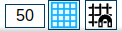
Grid Size Input
A number input field to set grid spacing.
| Setting | Description |
|---|---|
| Value | Grid spacing in mm |
| Min | 5 mm |
| Max | 999 mm |
To change:
- Type new value
- Use up/down arrows
- Use mouse scroll when focused
Grid Visibility Toggle
Toggle button to show/hide the grid overlay.
| State | Description |
|---|---|
| Highlighted | Grid visible |
| Gray | Grid hidden |
Snap to Grid Toggle
Toggle button to enable/disable snap-to-grid behavior.
| State | Description |
|---|---|
| Highlighted | Elements snap to grid |
| Gray | Free positioning |
When enabled:
- New elements snap to nearest grid intersection
- Moving elements aligns to grid
Tip: Hold Alt while dragging to temporarily disable snap.
Show Anchors Toggle

Toggle to show or hide anchor points on the canvas.
| State | Description |
|---|---|
| YES | Anchors visible |
| NO | Anchors hidden |
Note: Anchors are always visible when using the Eraser tool, regardless of this setting.
Usage Tips
Monitoring Your Work
The Status Bar provides essential feedback:
- Coordinates - know exactly where you're placing elements
- Zoom - understand your current view scale
- Status - see what the current tool expects
Quick Grid Adjustments
- Increase grid size for rough layout
- Decrease grid size for fine positioning
- Toggle snap as needed for free-form vs. aligned drawing
Checking for Errors
- Console button turns red when errors occur
- Click to view error details
- Check status message for operation failures
Keyboard Shortcuts
| Shortcut | Action |
|---|---|
| Ctrl++ | Zoom in |
| Ctrl+- | Zoom out |
| Ctrl+0 | Fit to view |