
Library
The Library stores reusable drawing templates that can be placed into your projects. Unlike typical CAD libraries that contain only component metadata, LoomCAD libraries contain complete drawing sheets — including components, bundles, wires, dimensions, and annotations.
Overview
Library allows you to:
- Save complete drawing templates for reuse (components, bundles, bundle splices, wires — any drawing elements)
- Store reusable scripts (human-written or AI-generated) to run on any project
- Fetch templates into your current project
- Share standardized designs across projects
- Build a catalog of reusable harness sections and component groups
Each library sheet is a reusable template that can include:
- Single components with dimensions and images
- Multi-component assemblies with pre-wired connections
- Complex sub-harnesses with bundles and routing
- Any combination of drawing elements
This makes LoomCAD libraries function as drawing templates or prototypes rather than simple part catalogs. When you place a library item, you get the entire sheet contents — not just a single component.
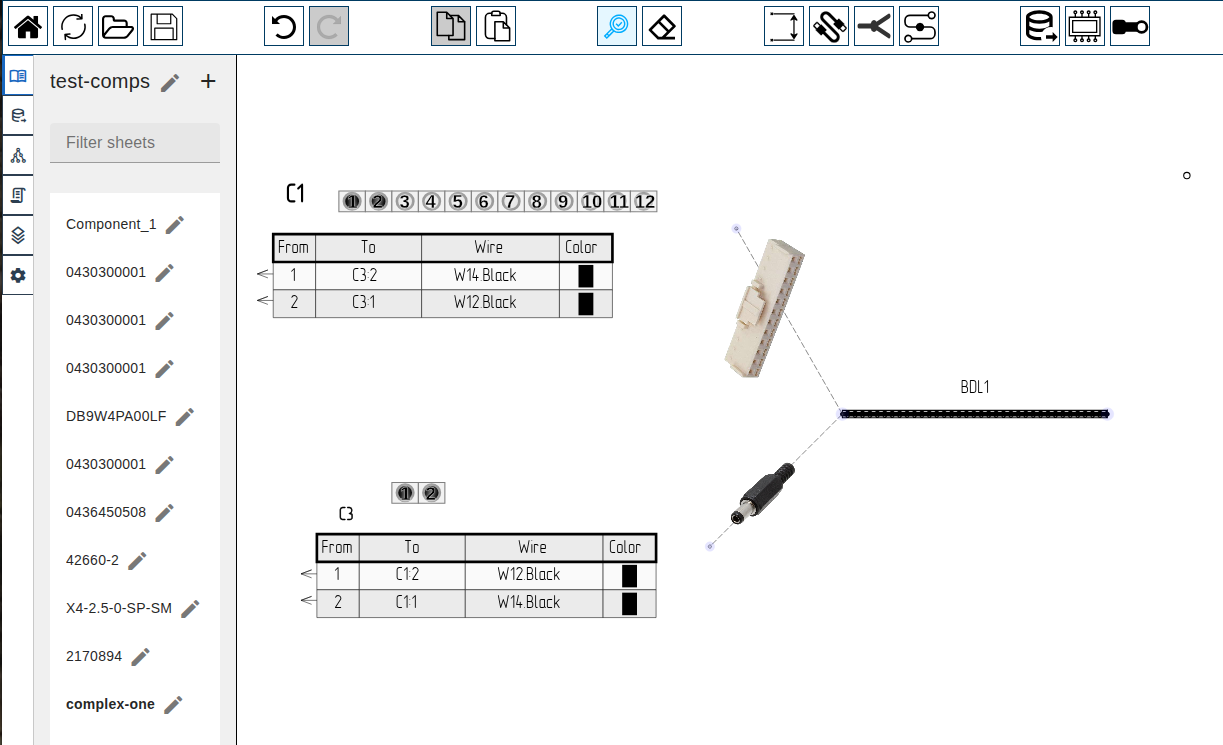 Library template with multiple components, bundles, and wires
Use cases:
- Standard assemblies — pre-wired connector groups that repeat across projects
- Reference designs — baseline harness sections to adapt
- Company standards — approved component + labeling combinations
Fetching from Library
From Inspector
- Select a component on canvas
- Open Inspector
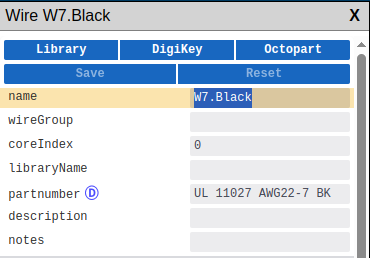
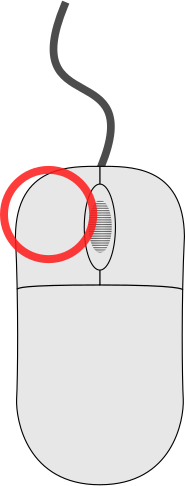 click Library button
Fetch Dialog
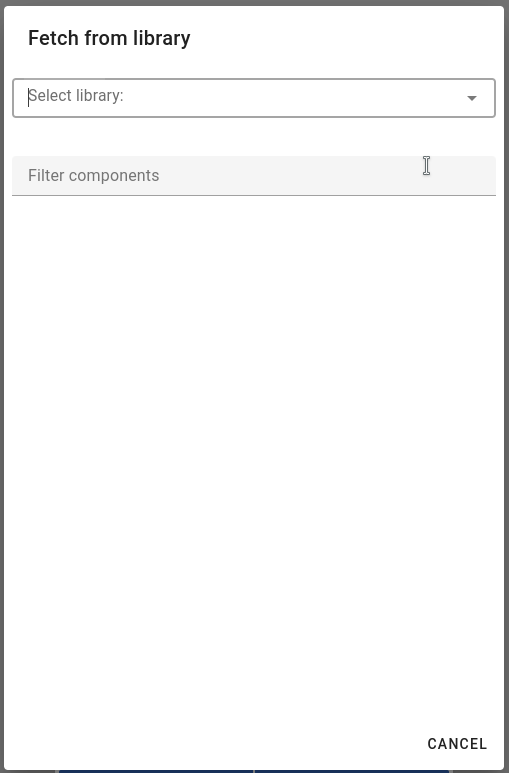
| Element | Description |
|---|---|
| Select library | Dropdown to choose library source |
| Filter components | Text field to filter component list by name |
| Component list | Available components from selected library |
| CANCEL | Close dialog without importing |
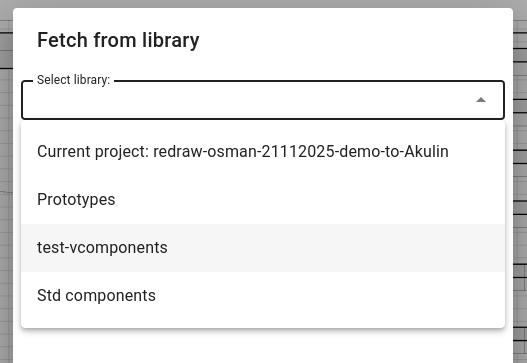
Library sources:
- Current project — components saved in the current project
- Shared libraries — common component libraries (e.g., Prototypes, Std components)
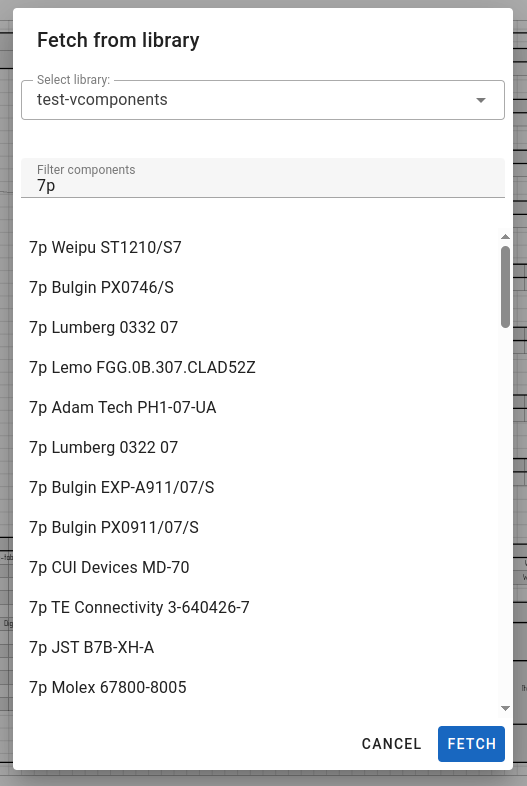
Type in the filter field to search components by name.
To import:
- Select library from dropdown
- Filter or browse component list
- click on component to import it
After Fetching
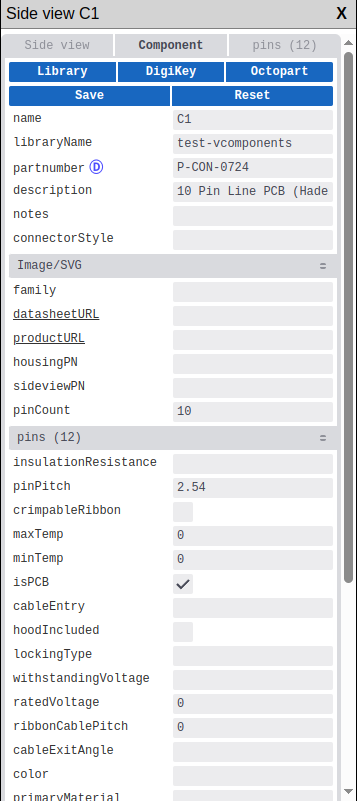
After fetching, Save and Reset buttons appear in Inspector:
| Button | Description |
|---|---|
| Save | Save fetched data to the component |
| Reset | Discard fetched data and revert changes |
Creating a Library
Library is a special project type where each sheet represents one reusable template.
To create a library:
- Go to Start Screen
- click
 next to Libraries
 - Each sheet in the project = one library template
To add a template:
- Add a new sheet to the library project
- Draw your component(s), dimensions, labels, etc.
- Use Attach All to Anchor to link all elements to a single anchor (so they move together when placed)
- Name the sheet — this becomes the library item name
To edit templates:
- Open the library project
- Navigate to the sheet
- Modify the drawing
Related Topics
- Inspector - Fetch and Save buttons
- DigiKey Integration - Import from DigiKey
- Component - Component properties