
DigiKey Integration
LoomCAD integrates with DigiKey to import component data directly from the DigiKey catalog.
Overview
DigiKey is an electronic component distributor with millions of parts. The integration allows you to:
- Search DigiKey catalog from within LoomCAD
- Import component specifications automatically
- Get datasheets and product images
- Keep component data up-to-date
Supported Elements
DigiKey (and Octopart) fetch is available for all manufactured elements:
| Element | Creation dialog | Inspector | Bulk pin fetch | Save to Library |
|---|---|---|---|---|
| Component | ✅ | ✅ | ✅ (all pins) | ✅ |
| Wire | ✅ | ✅ | — | — |
| Bundle | ✅ | ✅ | — | — |
| Bundle Splice | ✅ | ✅ | — | — |
| Pin | ✅ (Terminal dialog) | ✅ | — | — |
Opening the DigiKey Dialog
From the Inspector (editing an existing element):
- Select any manufactured element on the canvas
- Open the Inspector (if not already visible)
- Click DigiKey (or Octopart) in the Inspector action bar
From a creation dialog (before the element is placed):
Every creation dialog for manufactured elements includes DigiKey and Octopart buttons. Click the button while filling in properties to search and import data before confirming placement.
There is no separate DigiKey tab or panel in the sidebar.
Fetching Element Data
From Inspector
- Select any manufactured element on canvas
- Open Inspector
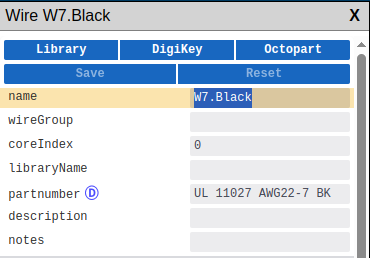
 click one of the fetch buttons:
| Button | Description |
|---|---|
| Library | Fetch properties from a component library |
| DigiKey | Search and import from DigiKey catalog |
| Octopart | Search and import from Octopart |
Bulk fetch for pins: When a component is selected in Inspector, an additional "all from DigiKey" button appears above the pins list. Clicking it applies one part's data to every pin at once.
For arrays of homogeneous entities (such as pins), the buttons read "all from Library", "all from DigiKey", etc. to fetch data for every item at once.
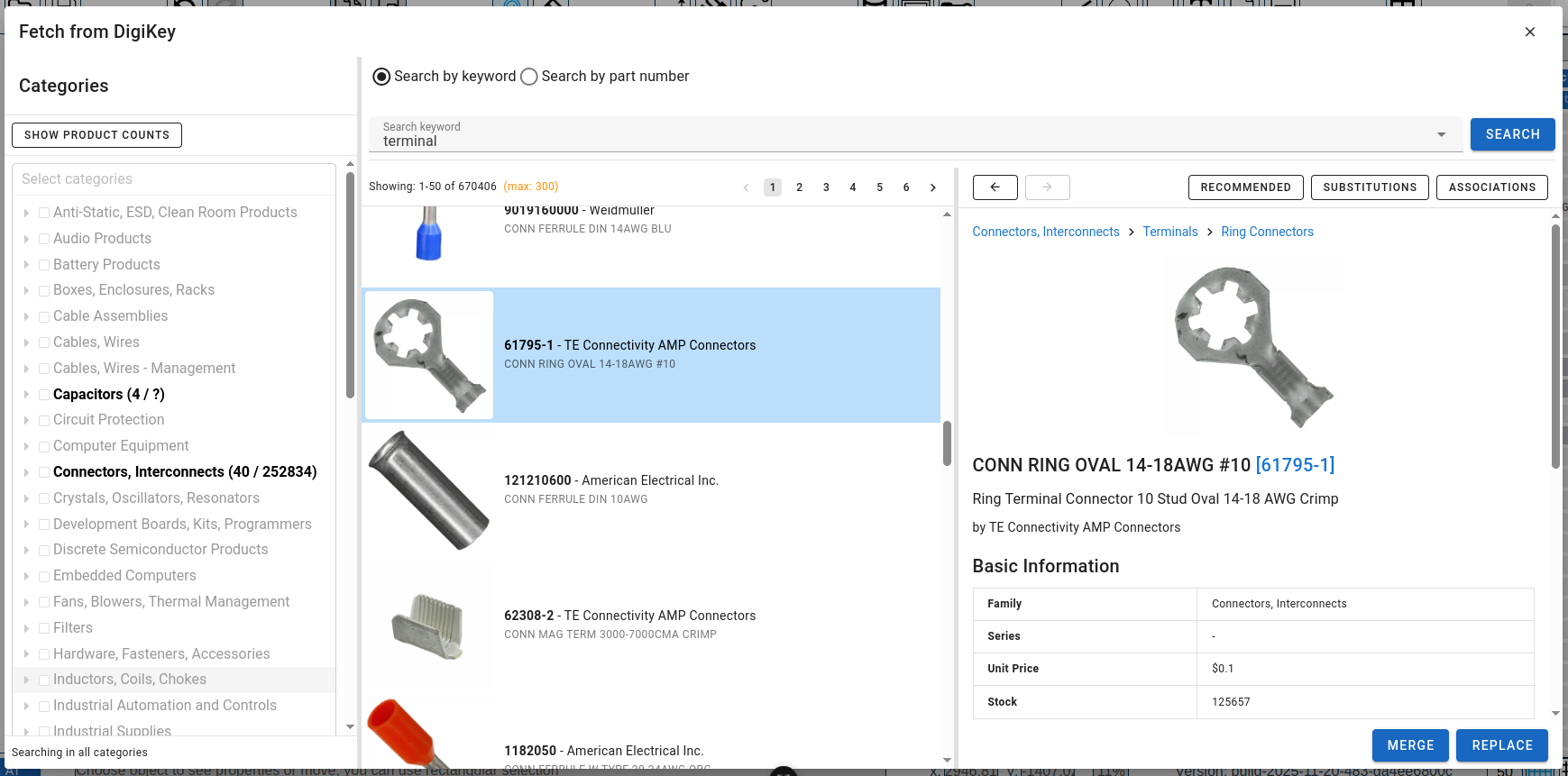
Search Dialog
Search Type and Input
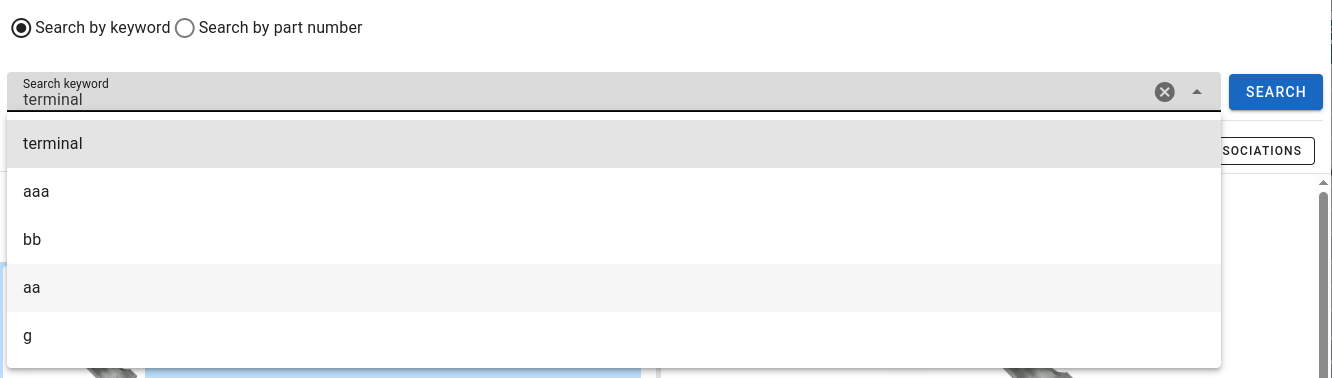
At the top of the dialog:
| Element | Description |
|---|---|
| Search by keyword | Search by description or specifications |
| Search by part number | Exact DigiKey or manufacturer part number |
| Search input | Text field for your query |
| Search history | Dropdown with recent searches |
| Clear button | Clear input field |
Enter your search query in the input field and press Enter or
click SEARCH.Tip: Use the dropdown arrow to access your recent search history.
Categories
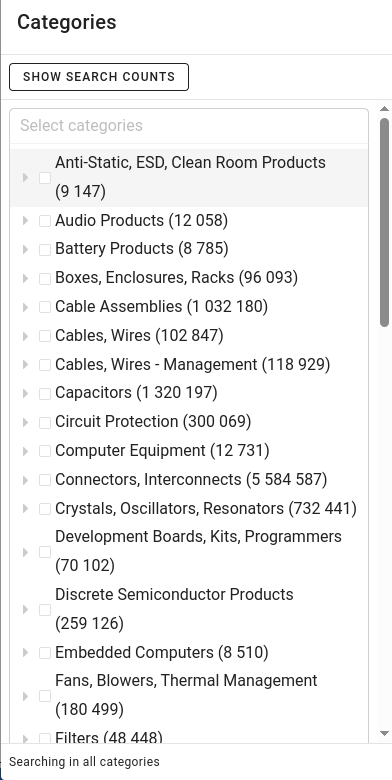
The categories panel displays a hierarchical tree of DigiKey product categories.
Note: When no categories are selected, search returns results from all categories.
| Element | Description |
|---|---|
| ▸ / ▾ | Expand/collapse arrow to show subcategories |
| Category name | click to include category in search filter |
| Count | Number of products or search results (see Count Modes) |
| Filter input | Text field to filter categories by name |
Filtering Category Names
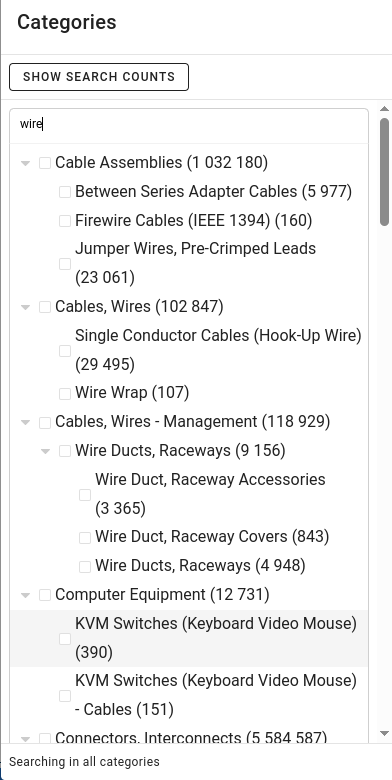
Type in the filter input to show only categories matching the substring. This helps quickly find specific category types in the tree.
Filtering by Categories
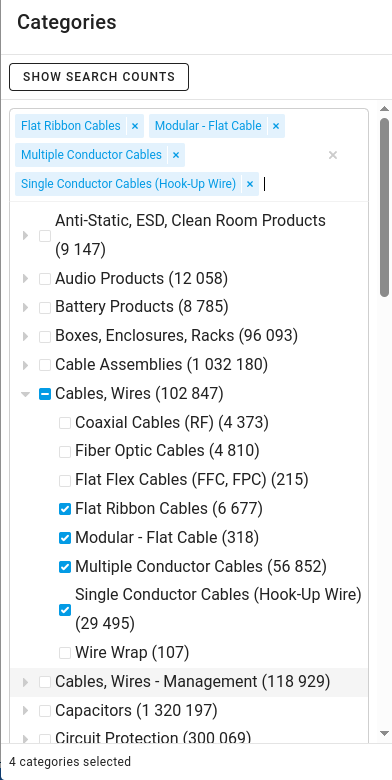
When categories are selected, search results are filtered to only include products from those categories.
| Element | Description |
|---|---|
| Selected categories | Highlighted in the tree, search limited to these |
| Selected chips (top) | Shows selected categories with ✕ button to deselect |
| Clear selection | Reset all category filters |
Actions:
- click category in tree to select it
- click selected category in tree to deselect
- click ✕ on chip at the top to deselect category
Category Panel Reacts to All Search Types
After any search -- keyword, part number, or history -- the category panel updates to reflect the current result set: categories that contain matching products are bolded and show the count of results in that category. Categories with no matching results are dimmed.
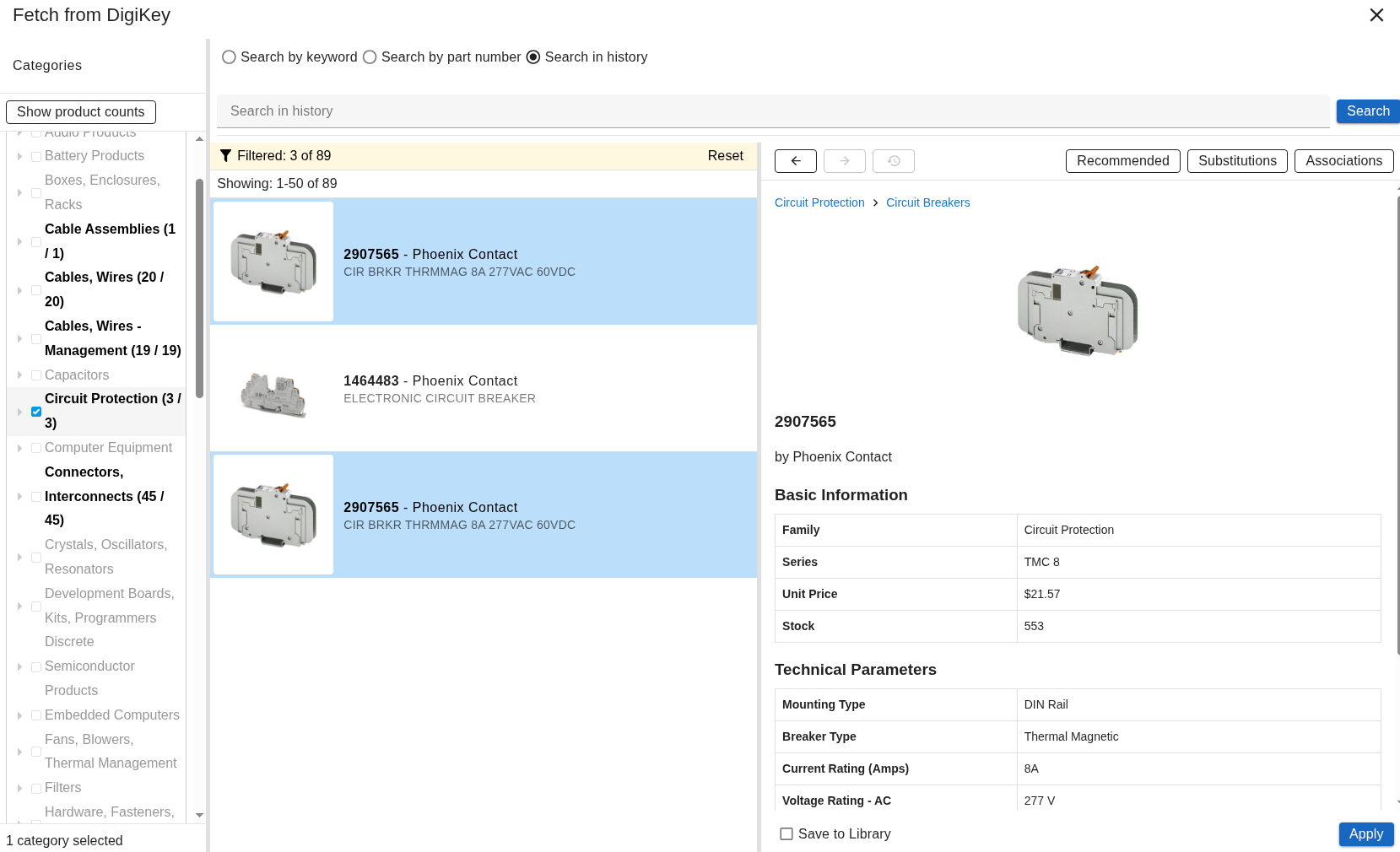
This works the same way across all three search modes:
| Search type | How category panel reacts |
|---|---|
| Keyword | Bolds categories containing results from the API response |
| Part number | Bolds the single category of the matched product |
| History | Bolds categories present in the filtered history results |
Count Modes
The Show products count / Show search counts button toggles between two display modes:
| Mode | Description |
|---|---|
| Products count | Total products available in each category |
| Search counts | How many search results fall into each category |
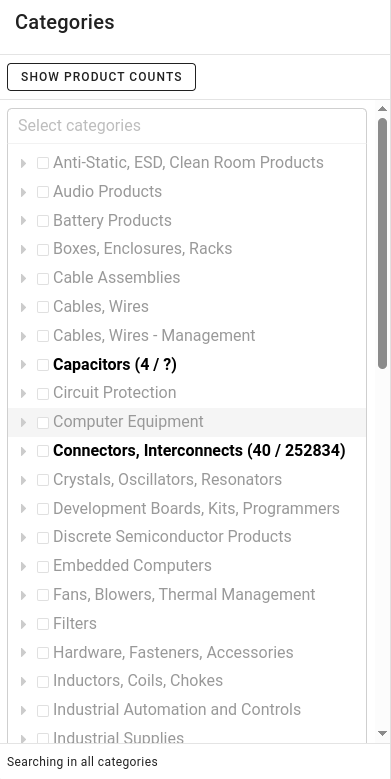
Search counts format: displayed/total
| Part | Description |
|---|---|
displayed | Results shown on current page |
total | Total results found in category |
? | Total is unknown |
Results List
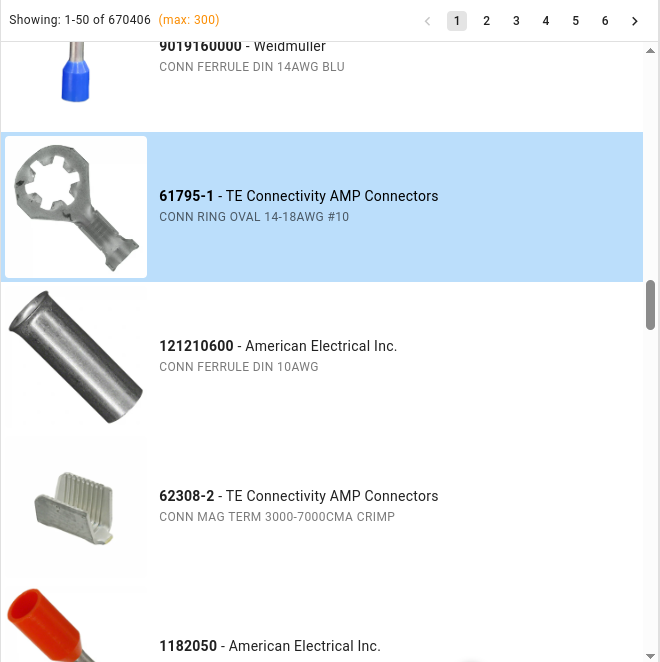
Pagination Header
| Element | Description |
|---|---|
| Showing: X-Y of Z | Current range and total results |
| (max: 300) | Maximum results available via API |
| Page numbers | click to navigate pages |
| < > | Previous/next page arrows |
Product Rows
Each row displays:
| Element | Description |
|---|---|
| Image | Product thumbnail |
| Part Number | DigiKey part number (bold) |
| Manufacturer | Manufacturer name (after dash) |
| Description | Product description (below) |
click a row to select it — selected row is highlighted with orangeborder. Product card appears on the right.
Product Card
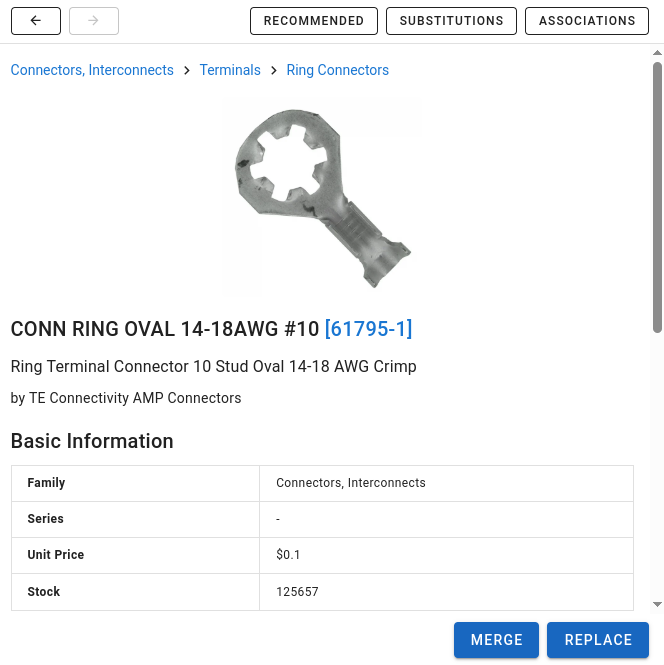
When you select a result, the product card shows detailed information:
Navigation Bar
| Element | Description |
|---|---|
| ← → | Navigate through product card view history |
| RECOMMENDED | Show recommended products |
| SUBSTITUTIONS | Show substitute products |
| ASSOCIATIONS | Show associated products |
click any of the three buttons to open a dropdown list with relatedproducts.
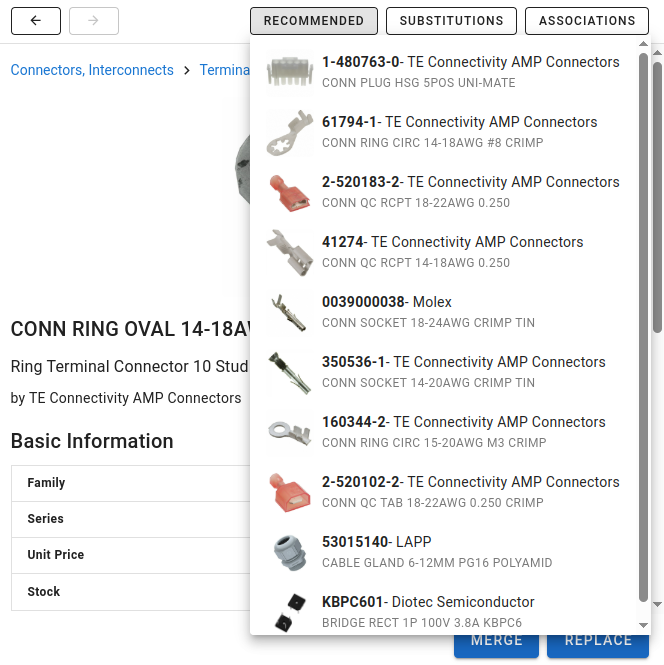
Each item in the dropdown shows:
- Product image (RECOMMENDED only)
- Part number and manufacturer
- Product description
click an item to view its product card.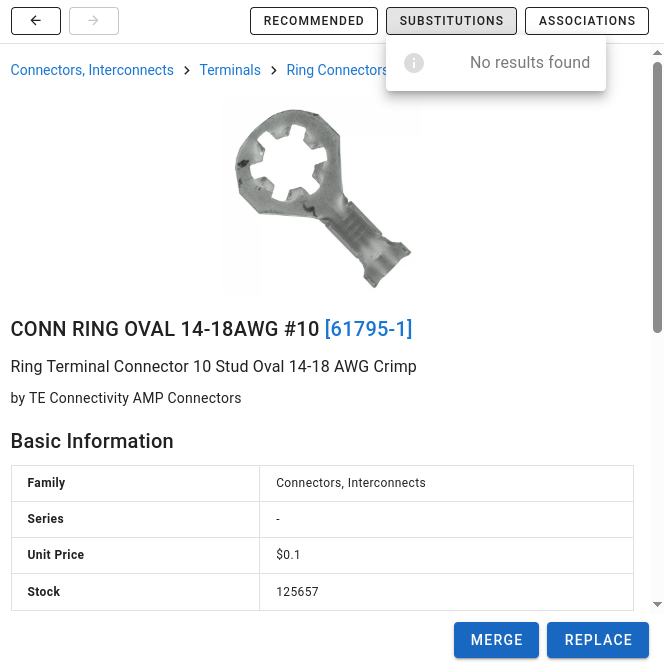
Note: SUBSTITUTIONS and ASSOCIATIONS may not always have results. When no related products are found, "No results found" is displayed.
Product Details
| Element | Description |
|---|---|
| Breadcrumb | Category path — click category name to search products in that category |
| Image | Product photo |
| Title | Description with part number link |
| Subtitle | Full description and manufacturer |
Basic Information
| Field | Description |
|---|---|
| Family | Product family/category |
| Series | Product series (if available) |
| Unit Price | Current price |
| Stock | Available quantity |
Technical Parameters
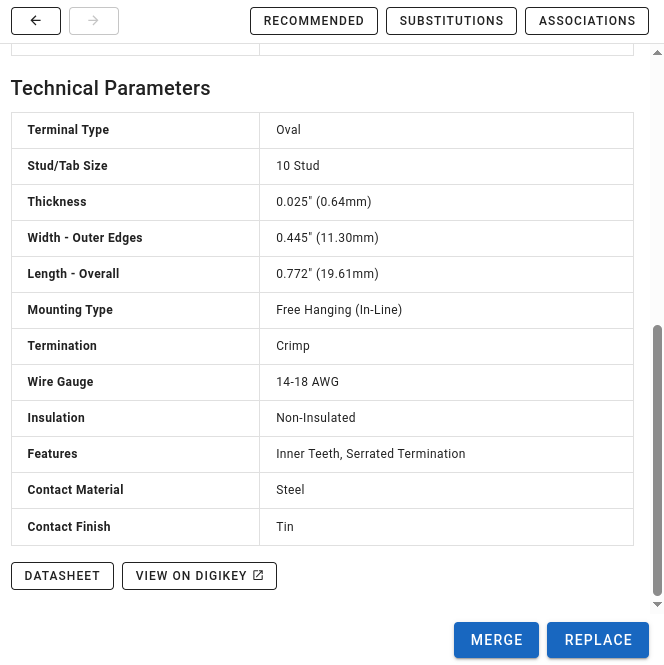
Scroll down to see detailed technical specifications. Parameters vary by product type and may include:
- Dimensions (thickness, width, length)
- Electrical ratings (wire gauge, voltage, current)
- Materials and finishes
- Mounting and termination types
Links
| Button | Description |
|---|---|
| DATASHEET | Open PDF datasheet |
| VIEW ON DIGIKEY | Open product page on DigiKey website |
Action Buttons
| Button | Description |
|---|---|
| MERGE | Add new properties, keep existing values |
| REPLACE | Overwrite all properties with DigiKey data |
After Import
After importing, Save and Reset buttons appear in Inspector:
| Button | Description |
|---|---|
| Save | Save imported data to the component |
| Reset | Discard imported data and revert changes |
Imported Data
DigiKey provides the following data:
| Field | Description |
|---|---|
| partnumber | DigiKey part number |
| description | Product description |
| manufacturer | Manufacturer name |
| manufacturerPN | Manufacturer part number |
| datasheetURL | Link to datasheet PDF |
| productURL | Link to DigiKey product page |
| imageData | Product image |
| pinCount | Number of pins (for connectors) |
| connectorStyle | Connector type |
| ratedVoltage | Voltage rating |
| ratedCurrent | Current rating |
| maxTemp / minTemp | Temperature range |
Adding to Component Library
When the DigiKey dialog is opened for a new component, a Save to Library checkbox appears in the action bar next to the Merge/Replace buttons.
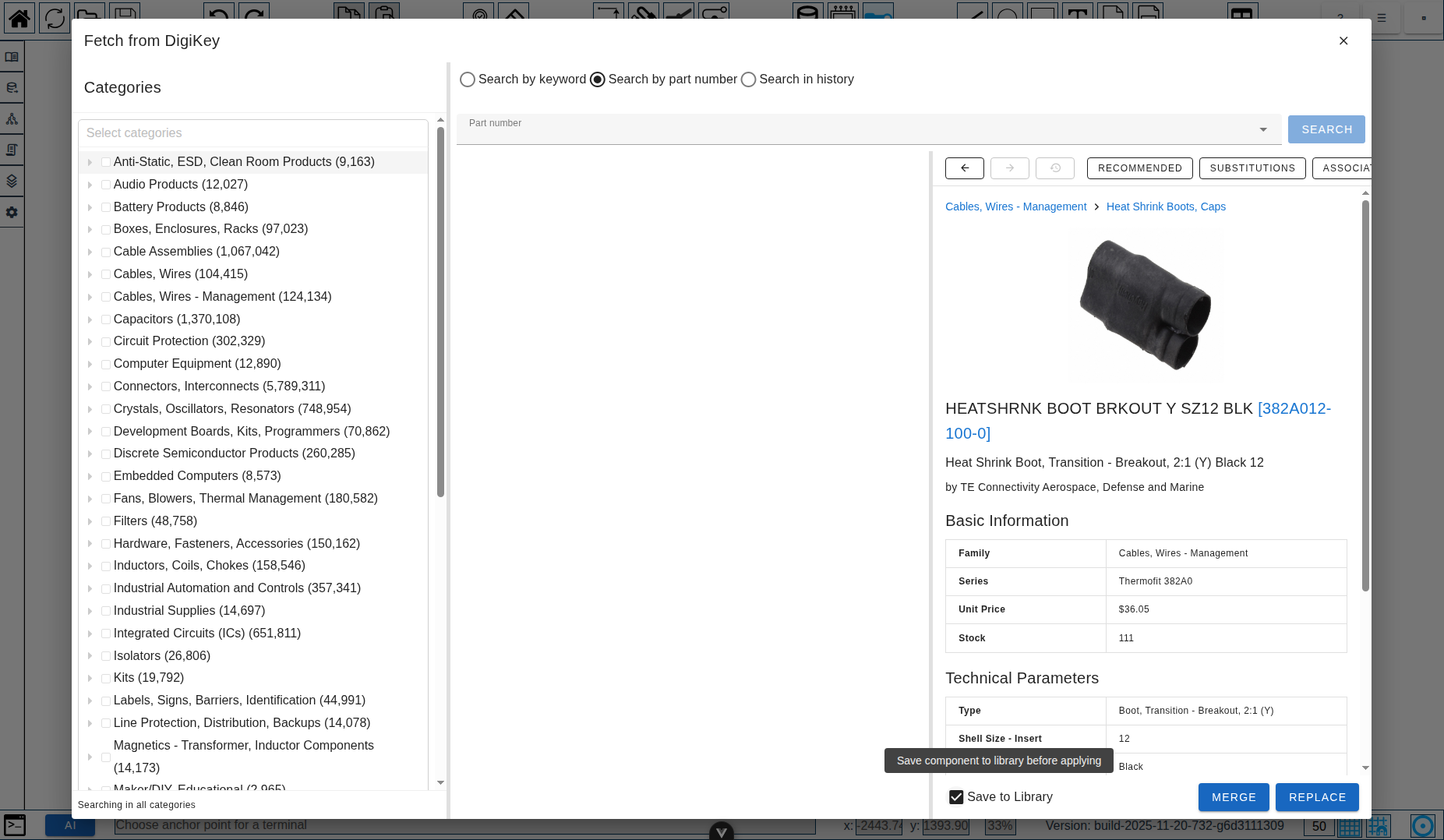
When checked, clicking Merge or Replace first opens a secondary dialog:
- Select library — choose which library project to save into
- Use part number as sheet name — checked by default; uncheck to enter a custom sheet name
- Click Save & Apply — saves the component (with its properties, pins, and sideview image) to the library, then applies it to the current design
The checkbox state is remembered between sessions.
INFO
The checkbox is only active when creating a new component. It is not available for wires, bundles, or bundle splices. It is disabled when fetching data to update an existing component on the canvas.
Under the hood this uses the createLibraryComponent command, creating a new sheet in the target library with the fetched component data.
AI Integration
DigiKey works together with AI Chat:
- Open DigiKey search dialog
- Find a component but don't close the dialog
- Open AI Chat
- AI sees the component via context badge
- Ask AI to populate properties or suggest alternatives
Example prompts:
- "Fill in the connector properties from DigiKey"
- "What's the pin pitch for this connector?"
- "Find a similar connector with more pins"
Script Command
AI Chat can also fetch DigiKey data directly via the fetchDigikeyObject script command. Ask AI to look up a part number and place it on the canvas - the product image is automatically used as a sideview. The same call also enriches Bundles, Wires, Pins, and BundleSplices via per-type field bags. Fetched parts appear in the DigiKey dialog history for later reuse.
Octopart
Octopart is a multi-distributor component search engine. The workflow is identical to DigiKey — the same Octopart button appears wherever DigiKey appears: in every creation dialog and in the Inspector for all manufactured elements.
See the dedicated Octopart Integration page for full details including setup, differences from DigiKey, and troubleshooting.
Troubleshooting
"API Error" Message
- Check your API token is valid
- Verify internet connection
- DigiKey API may be temporarily unavailable
No Results Found
- Try different search terms
- Check spelling of part numbers
- Use broader keywords
Missing Data
- Not all DigiKey parts have complete data
- Some fields may be empty
- Check datasheet for additional specifications