
Debugging Scripts
When scripts don't work as expected, this guide helps you identify and fix the problem.
Understanding Error Messages
When a script fails, LoomCAD shows an error message with useful information:
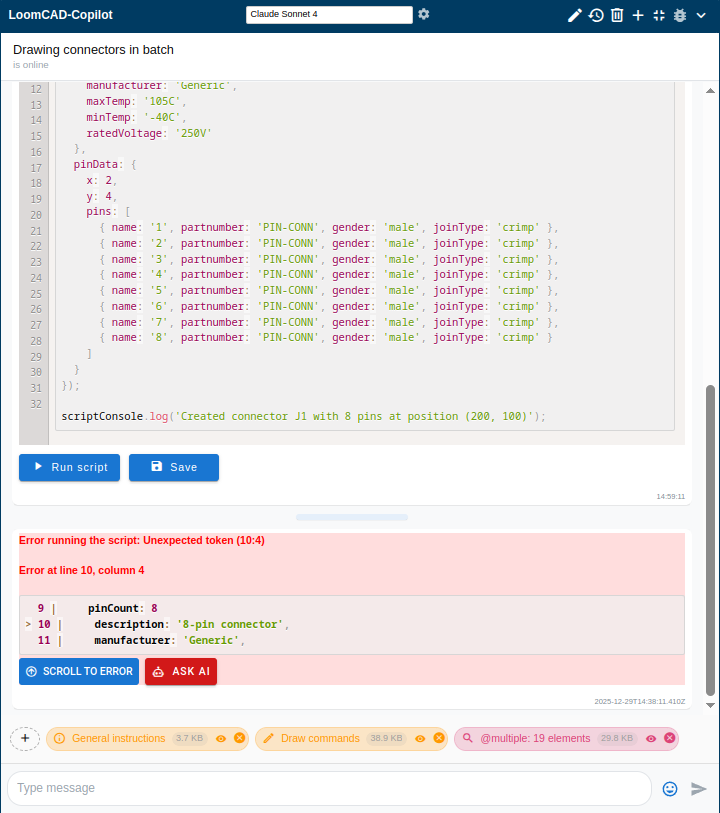
Error Components
| Part | Description |
|---|---|
| Error type | What kind of error occurred |
| Message | Description of the problem |
| Line number | Where in the script the error occurred |
| Code context | The problematic line highlighted |
Common Errors
Syntax Errors
Problem: JavaScript syntax is invalid.
// Missing closing bracket
Script.drawComponent({
  name: 'J101',
  x: 200
// <- Missing }
Fix: Check brackets, quotes, and commas. The error message shows the line number.
Command Not Found
Problem: Unknown command name.
// Wrong: 'createComponent' doesn't exist
Script.createComponent({...})

// Right: Use 'drawComponent'
Script.drawComponent({...})
Fix: Check the Command Reference for correct command names.
Missing Required Parameters
Problem: A required parameter is missing.
// Missing 'name' parameter
Script.drawComponent({
  x: 200,
  y: 300,
  pinCount: 8,
});
Error message: "Required parameter 'name' is missing"
Fix: Add the missing parameter.
Element Not Found
Problem: Trying to update or query an element that doesn't exist.
// Component 'ECU99' doesn't exist
Script.updateComponent({
  query: "ECU99",
  update: { partnumber: "NEW" },
});
Error message: "Component 'ECU99' not found"
Fix: Verify the element name or ID is correct. Use queryComponent to check.
Type Errors
Problem: Wrong data type for a parameter.
// pinCount should be a number, not a string
Script.drawComponent({
  name: "J1",
  pinCount: "eight", // Wrong!
});
Fix: Use the correct data type:
- Numbers:
8not'8' - Strings:
'text'with quotes - Arrays:
[1, 2, 3] - Objects:
{ x: 100, y: 200 }
Debugging Techniques
1. Add Console Logging
Insert scriptConsole.log() to see what's happening:
const result = Script.queryComponent({});
const components = result.elements.filter(c => c.name.startsWith("J"));
scriptConsole.log("Found components:", components.length);
scriptConsole.table(components); // Show as table

for (const comp of components) {
  scriptConsole.log(`Processing: ${comp.name}`);
  // ... rest of code
}
2. Check Query Results
Only query commands return usable data — use them to inspect elements:
const result = Script.queryComponent({ query: "TEST" });
scriptConsole.log("Query result:", result);
// Shows: { success: true, elements: [...] }

// Draw/update/erase/move commands are async and don't return usable data.
// Errors from these commands are reported automatically after script completes.
3. Test Incrementally
Don't run the whole script at once. Test piece by piece:
// Step 1: Just create the component
Script.drawComponent({...})
scriptConsole.log('Step 1 complete')

// Comment out the rest until Step 1 works
/*
Script.drawWire({...})
Script.updateComponent({...})
*/
4. Validate Queries First
Before bulk operations, check what will be affected:
// First, see what we're working with
const result = Script.queryWire({});
const redWires = result.elements.filter(
  w => w.colors && w.colors.includes("red")
);
scriptConsole.log(`Will update ${redWires.length} wires:`);
scriptConsole.table(
  redWires.map(w => ({ name: w.name, coreSizeAWG: w.coreSizeAWG }))
);

// Only proceed if it looks right
// Uncomment below after verifying:
// for (const wire of redWires) {...}
5. Use Try-Catch
Wrap risky code in error handling:
// Check if element exists before updating
const result = Script.queryComponent({ query: "MAYBE_EXISTS" });
if (result.success && result.elements.length > 0) {
  Script.updateComponent({
    query: "MAYBE_EXISTS",
    update: { partnumber: "NEW" },
  });
  scriptConsole.log("Update successful");
} else {
  scriptConsole.warning("Component not found, skipping update");
}
Validation Errors
LoomCAD validates command parameters before execution. Common validation errors:
Invalid Enum Value
// 'purple' is not a valid DIN 47100 color
Script.drawWire({
  fromComponent: "ECU1",
  fromPin: 1,
  toComponent: "J101",
  toPin: 1,
  colors: ["purple"], // Invalid!
});
Valid colors: white, brown, green, yellow, grey, pink, blue, red, black, violet, orange
Out of Range
// pinCount must be positive
Script.drawComponent({
  name: "J1",
  x: 100,
  y: 100,
  pinCount: -5, // Invalid!
});
Invalid Pattern
// Name can't contain certain characters
Script.drawComponent({
  name: "J/101", // '/' may not be allowed
});
Understanding the Execution Model
How Scripts Execute
Draw, update, erase, and move commands are asynchronous — they are queued and executed in order, with changes applied only after the entire script completes. Errors are collected and reported automatically.
Query commands are the exception — they execute immediately and return data.
// All commands execute in order
Script.drawComponent({ name: "J1", x: 100, y: 100, pinCount: 4 });
Script.drawComponent({ name: "J2", x: 200, y: 100, pinCount: 4 });

// Query results reflect the state BEFORE script started
const result = Script.queryComponent({});
// result.elements won't include J1 or J2 yet!

scriptConsole.log("Script finished - components will appear now");
// J1 and J2 appear after this script completes
Querying Newly Created Elements
Problem: Can't query elements created earlier in the same script.
Solution: Either:
- Store data you need in variables as you create elements
- Run a separate script to query after creation completes
// Store what you need as you go
const createdComponents = [];

for (let i = 1; i <= 5; i++) {
  const name = `J${i}`;
  Script.drawComponent({
    name: name,
    x: 100 * i,
    y: 100,
    pinCount: 4,
  });
  createdComponents.push(name);
}

// Use your stored data
scriptConsole.log(`Created: ${createdComponents.join(", ")}`);
Recovery from Failed Scripts
Undo Changes
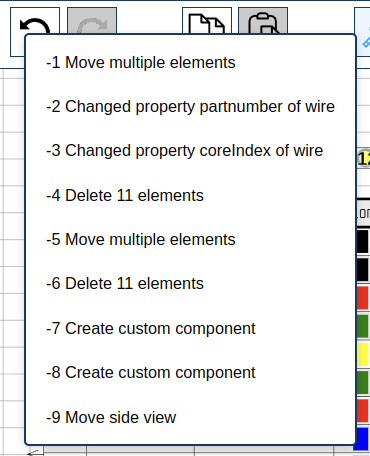
LoomCAD automatically creates a named revision checkpoint before every script execution. Named revisions appear bold in the undo/redo menu.
To revert a script's changes:
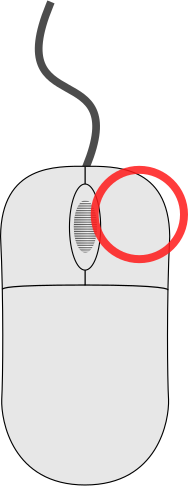 click the Undo button to open the history menu
- Find the bold checkpoint entry (named after the script)
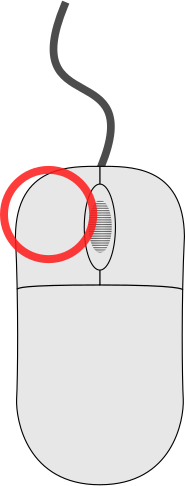 click it to revert all the script's changes at once
Or press Ctrl+Z repeatedly to undo step by step.
You can also restore a checkpoint via script:
Script.restoreRevision({
  name: "Before bulk wire update",
});
Partial Execution
If a script failed mid-way:
- Some changes were made, some weren't
- Use the named checkpoint to undo all changes at once, fix the script, and run again
- Or manually fix the remaining items
Corrupted State
LoomCAD automatically checks project data integrity when opening a project. If corruption is detected, a recovery dialog appears with options to roll back recent changes or continue anyway.
If the design seems broken and no recovery dialog appeared:
- Save a backup: Project > Export as JSON
- Refresh the browser
- If still broken, contact support with the JSON export
Getting Help
Ask the AI
Copy your error message and ask:
"This script is failing with error: [paste error]. What's wrong?"
The AI can often identify the issue and suggest fixes.
Check the Error Line
The error message includes a line number. Look at that specific line:
Error at line 15: Cannot read property 'name' of undefinedLine 15 is trying to access .name on something that's undefined.
Simplify and Isolate
If you can't find the bug:
- Make a copy of the script
- Remove half the code
- Does it work now? Bug is in the removed half.
- Repeat until you find the problem line
Script Checklist
Before running a script, verify:
- All strings are quoted:
'text'nottext - All brackets match:
{...},[...],(...) - Variable names are spelled consistently
- Required parameters are included
- Enum values are valid (colors, types, etc.)
- Element names/IDs being referenced exist
- Queries use exact names (no wildcards like
*) - Update commands use
{ query: '...', update: {...} }format
Next Steps
- Command Reference - Verify command syntax
- Scripting Basics - Review fundamentals
- Script Libraries - Save working scripts