
Components
Components (also called connectors) are the main elements in wire harness designs. They represent physical connectors, terminals, splices, and other devices that wires connect to.
Creating Connectors
From Library
- Open the Side Menu and select the Library tab
- Browse or search for a component
- Drag and drop onto the canvas
Custom Component
- Click the Custom Component button in the Toolbar or press Ctrl+Insert
- Enter component properties in the dialog
- Click Create
While the Custom Component tool stays active, each placement after the first opens the dialog pre-filled with the values you submitted last - manufacturer, partnumber, manufacturing fields, pin configuration, and sideview image all carry over. Only the unique component name is regenerated. Press Submit to chain identical placements, or tweak any field first. Switching to a different tool clears this carry-over; re-entering the Custom Component tool then starts fresh with schema defaults. The Terminal tool behaves identically with its own dialog. Library placements do not chain in this way - their props always come from the library entry, so there is nothing to carry over.
Using AI Chat
Ask the AI to create connectors in natural language:
Create a connector J1 with 8 pinsCreate 5 connectors J1-J5, all 4-pinConnector Properties
Select a connector and open the Inspector to view and edit:
| Property | Description |
|---|---|
| name | Component reference (e.g., J1, P1) |
| description | Component description |
| partNumber | Manufacturer part number |
| manufacturer | Component manufacturer |
| pinCount | Number of pins |
| connectorStyle | Connector type/style |
Component Name Label
The component name is displayed in a separate text container attached to the component's anchor. This label can be moved independently from the component itself.
The label supports variable substitution:
| Variable | Replaced with |
|---|---|
$REFDES | Component name |
$PN | Component part number |
By default the label text is $REFDES. Edit the label in the Inspector to change the displayed variable or add custom text.
Pin Editing
Each connector has pins that wires connect to.
Adding Pins
- Select the connector
- In Inspector, find the Pins section
- Click Add Pin
- Configure pin properties
To add multiple pins at once, set the pin count in the dialog. Pins are auto-named sequentially starting after the last existing pin number. Template properties (gender, partner number) are applied to all created pins. The pinout grid auto-expands to fit the new pins.
Script commands
You can add or remove pins programmatically with Script.addPins() and Script.removePins(). See the command reference for details.
Pin Properties
| Property | Description |
|---|---|
| name | Pin identifier (e.g., 1, A, GND) |
| description | Pin function description |
| signal | Signal name |
| wireGauge | Compatible wire gauge |
| stripLength | Bare-conductor length at the pin end (mm) |
| addonLength | Length consumed by the contact / termination beyond the strip (mm) |
| fanLength | Excess length added to fan the conductor out to the bundle (mm) |
The last three are wire-length contributions used by the Wire Cut List. They can be edited per pin in the inspector or populated in bulk via Script.calculateFanouts.
Pin Numbering
LoomCAD supports different pin numbering schemes:
- Horizontal-first - Numbers increase left to right, then top to bottom
- Row-first - Numbers increase top to bottom within each row
Pinout Display
Components can display a pinout diagram showing all pins with their names and connections. The pinout updates automatically when pins change.
To show pinout:
- Select the component
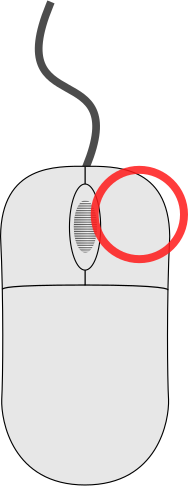 click and select "Show Pinout"
Side Views
Side views are visual representations of the connector shell - the physical connector body as seen from the side.
Supported Formats
- SVG — Vector graphics (scalable)
- Raster images — PNG, JPG, BMP, GIF, WebP, ICO, AVIF
Adding a Side View
- Select the component
- In Inspector, find the Side View section
- Click to upload an image or fetch from DigiKey
Component Wire Table
Each component can display a wire table showing all connections to its pins:
- Pin name and number
- Connected wire
- Wire color
- Destination component and pin
Click a row in the wire table to highlight the corresponding wire on the canvas.
Property Fetching
Populate component properties from external sources:
From DigiKey
- Select the component
- Click the DigiKey button in Inspector
- Search for the part
- Click MERGE or REPLACE to import properties
See DigiKey Integration for details.
From Component Library
- Select the component
- Click Fetch in Inspector
- Choose a library component
- Properties are copied to your component
Context Menu Options
Components are represented by pinouts, sideviews, and wire tables.
click on any of these to access component actions:| Action | Description | Available On |
|---|---|---|
| Flip Component | Mirror the component orientation | All representations |
| Add Pins | Add new pins to the component | Pinout only |
| Open Inspector | View and edit component properties | All representations |
When click on a pin within a pinout, you also see pin-specific options:
- Add Start/End Wire - Begin or complete a wire connection
- Remove Wire - Delete wire connected to this pin
- Remove Pin - Delete this pin (if component has more than one pin)
See Context Menu Quick Reference for all context menu options.
Creating Custom Components
Build components from drawing primitives:
- Draw the component shape using Line, Circle, Rectangle tools
- Add text labels
- Select all elements
- click and select "Create Component"
Related Topics
- Wires - Connections between pins
- Bundles - Wire routing containers
- Inspector - Property editing
- DigiKey Integration - Component data import